SimEyeSee Logo

SimEyeSee WarpShield

Anti-warping airflow deflector that redirects
auxiliary side cooling, even at 70%+ fan speed.

Overview

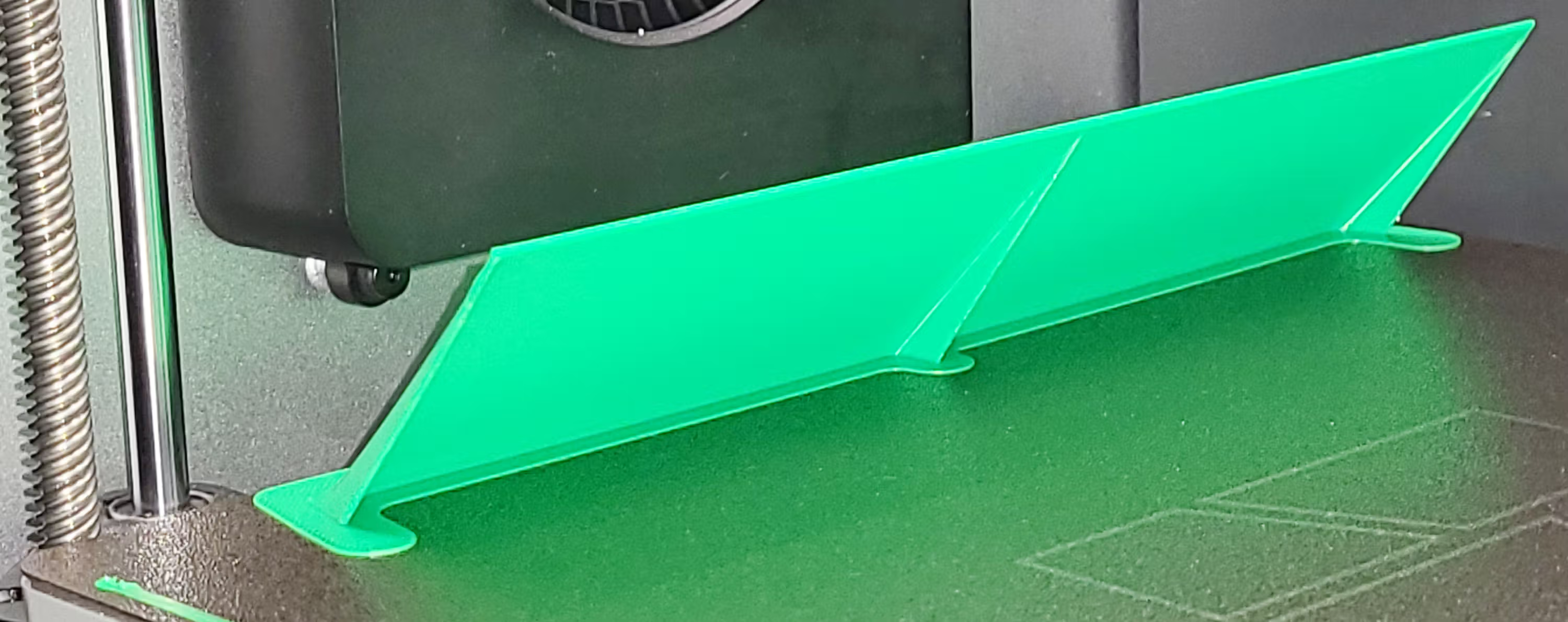
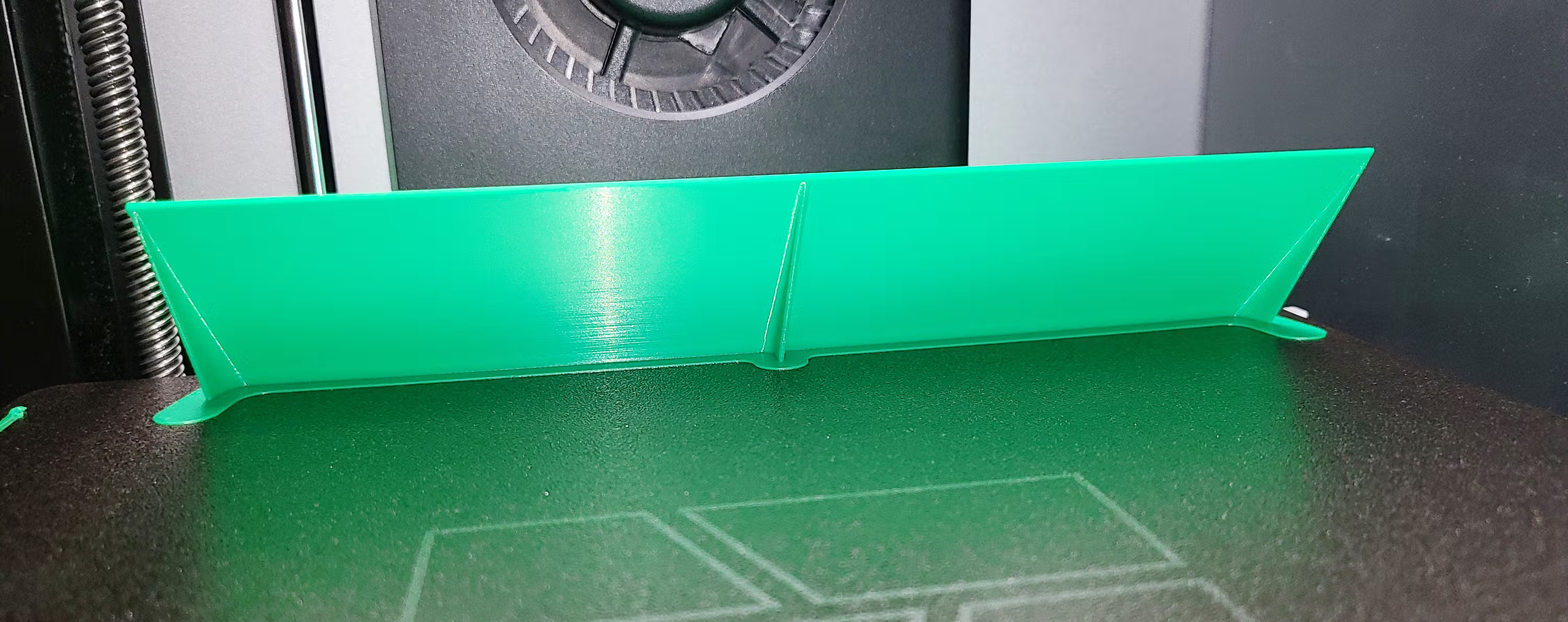
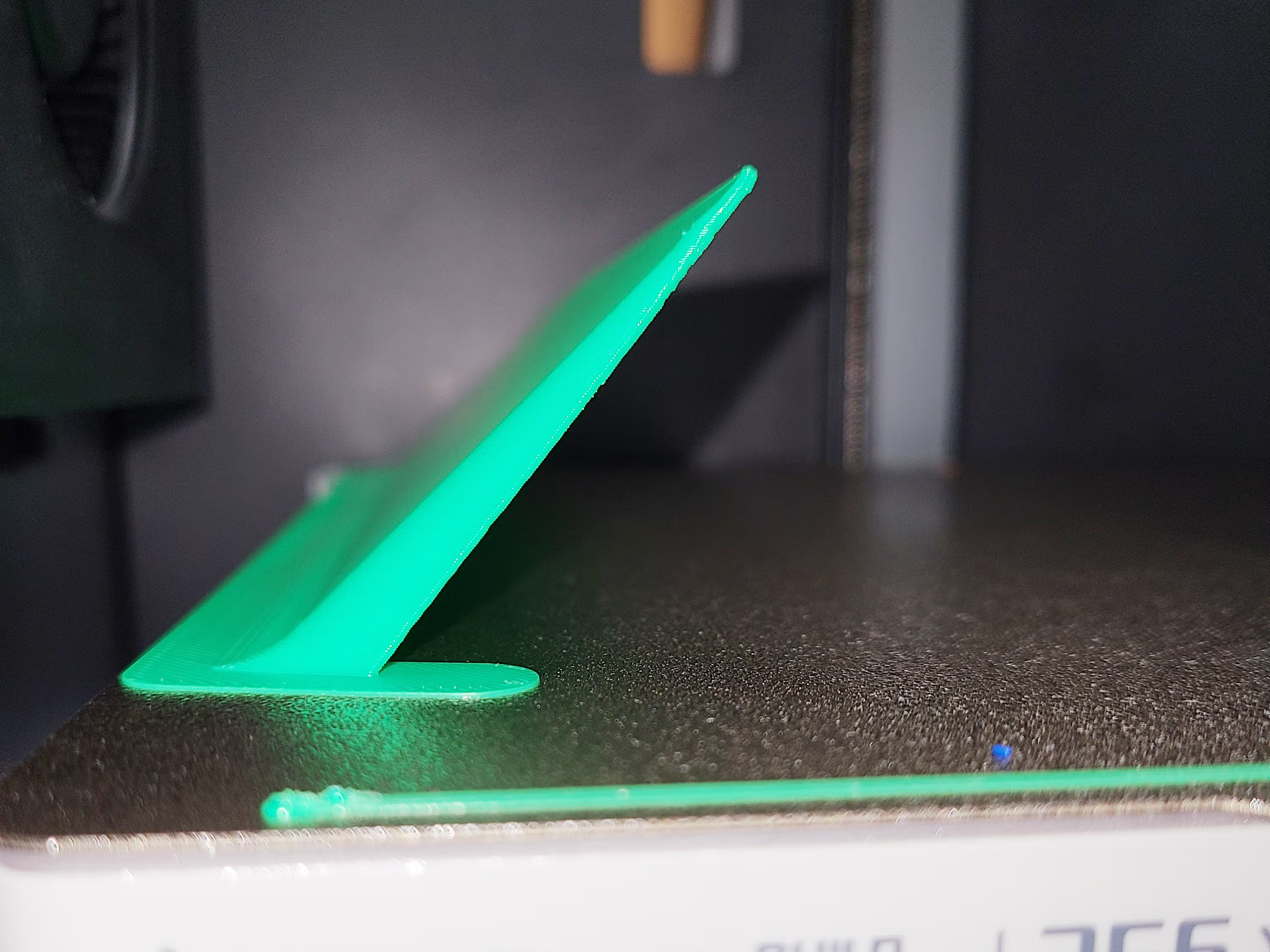
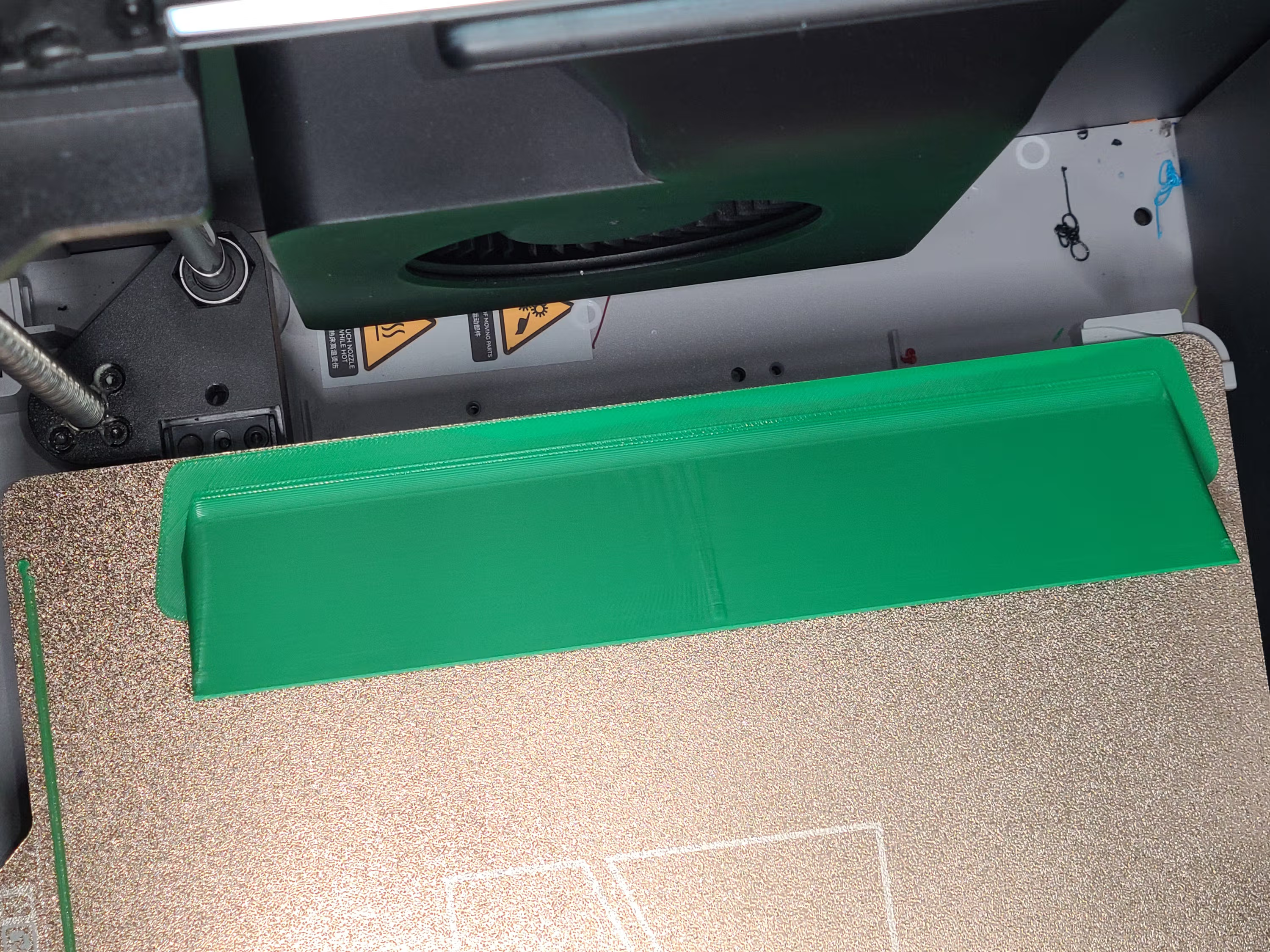
The SimEyeSee WarpShield is an airflow deflector for Bambu Lab X1, P1, P2, and H2 series printers, as well as other printers that use a secondary auxiliary fan blowing from the side. It is a 3D-printed accessory that prints alongside your model and redirects the auxiliary fan’s side-blast airflow upward and along the actively printing layers, preventing overcooling of lower layers while focusing cooling on the actively printing layers to preserve overhangs, bridges, and fine details.

With the WarpShield in place, you can safely run the auxiliary fan at 70% or higher without warping on the fan-facing side of the part.

The WarpShield is designed to be lightweight and efficient. Its walls are approximately 1 mm thick, using only a small amount of filament and adding a modest amount of time to a print, depending on size. In multi-color prints, material waste can often be reduced further by routing purge material into the WarpShield — see Additional Printing Benefits for details.

Free for Personal & Commercial Use

The SimEyeSee WarpShield is provided free of charge and may be included with other models — including models sold commercially — under a clear, attribution-based license. Size adjustments are allowed, but the airflow design itself may not be modified. For more information, view the Full Licensing Details.


Back to Top

Placement & Orientation

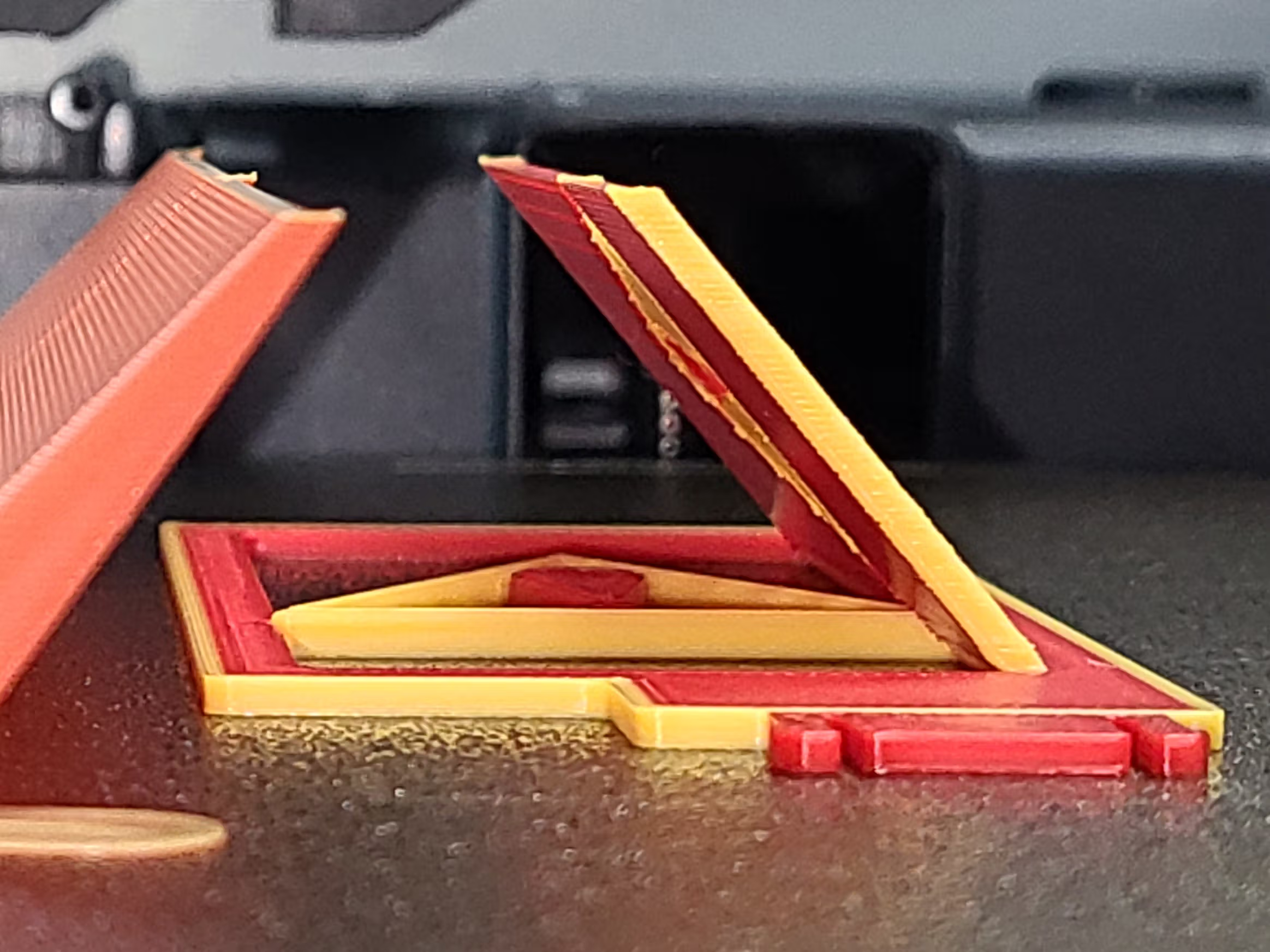
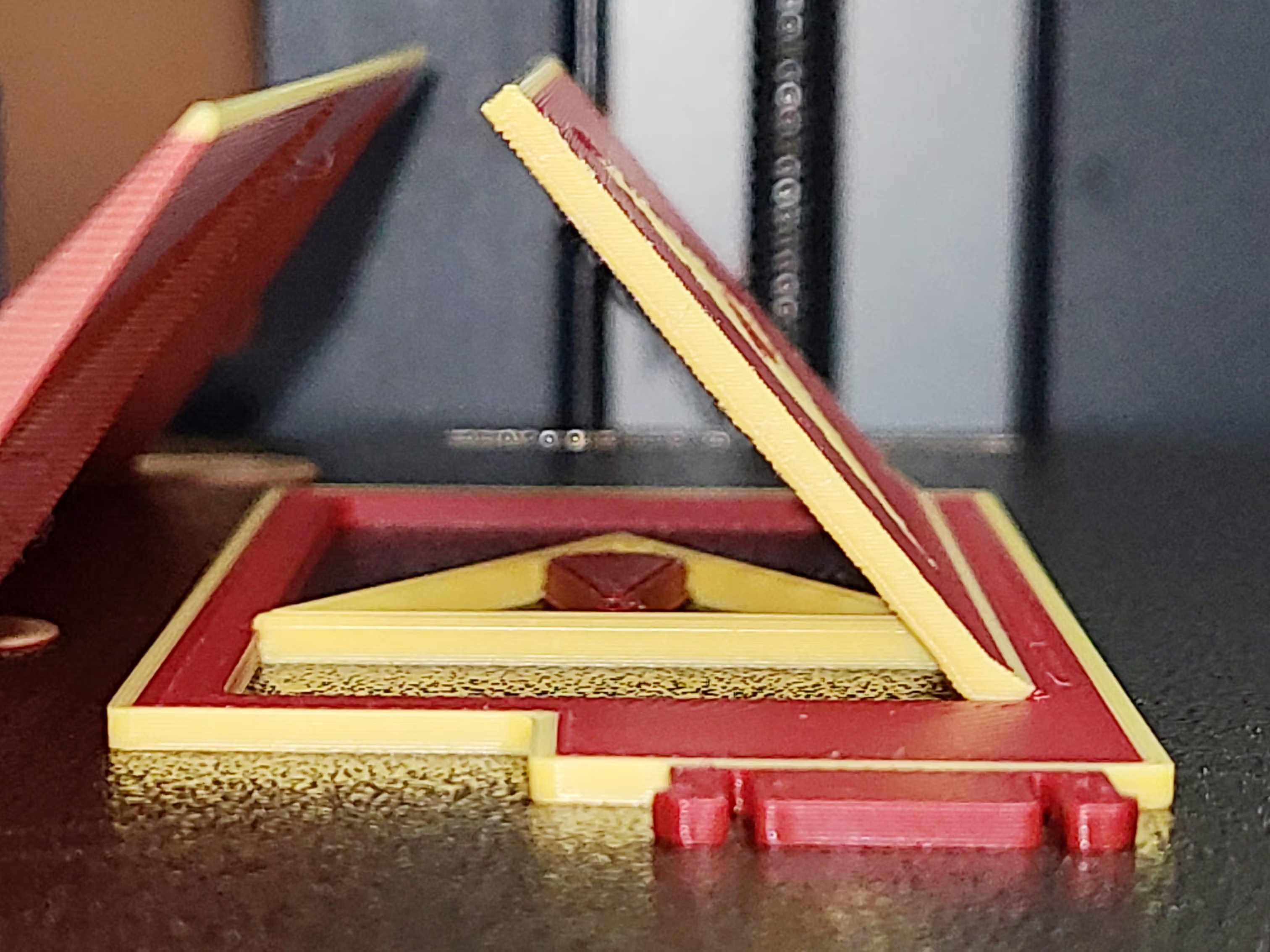
  • Place the Curved and/or Straight WarpShield in your slicer, on the auxiliary fan side of your model, so it prints alongside the part.
  • Set a 2–3 mm gap from the top of the WarpShield to the model (recommended).
  • The WarpShield’s bottom sits flat on the build plate.

The goal is to lift the fan’s side airflow away from already-printed lower layers while focusing strong, directed cooling on the actively printing layers.

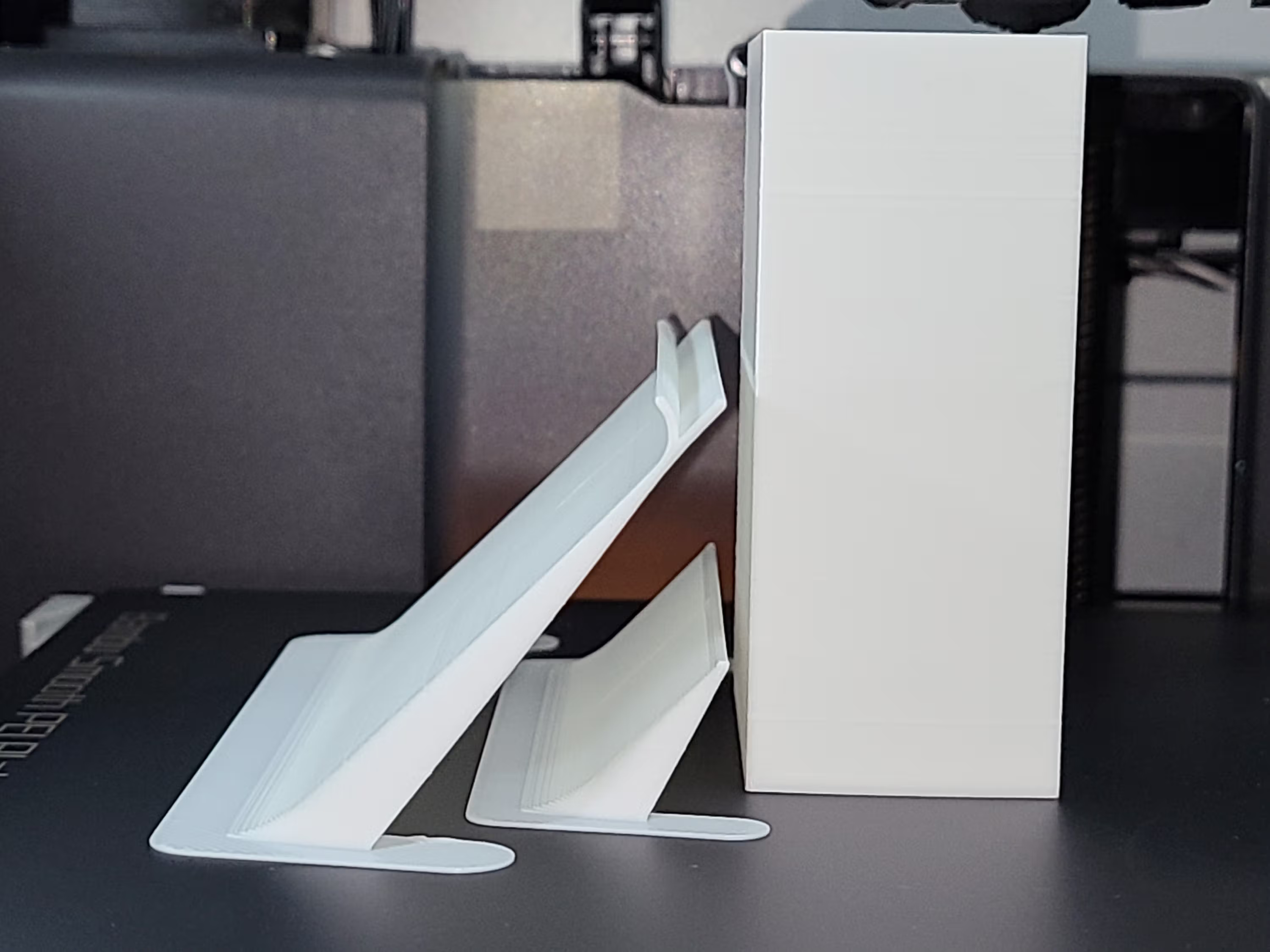
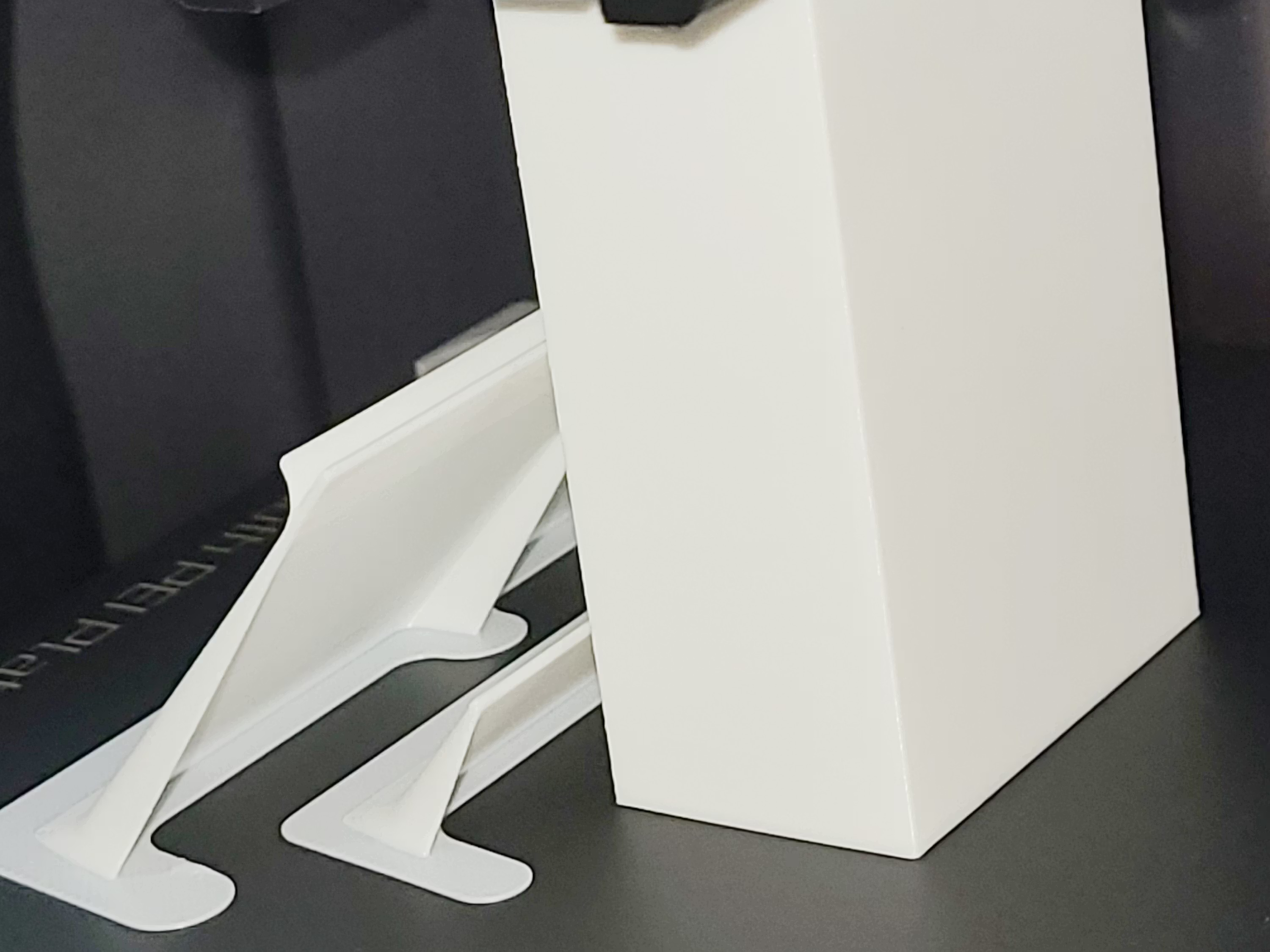
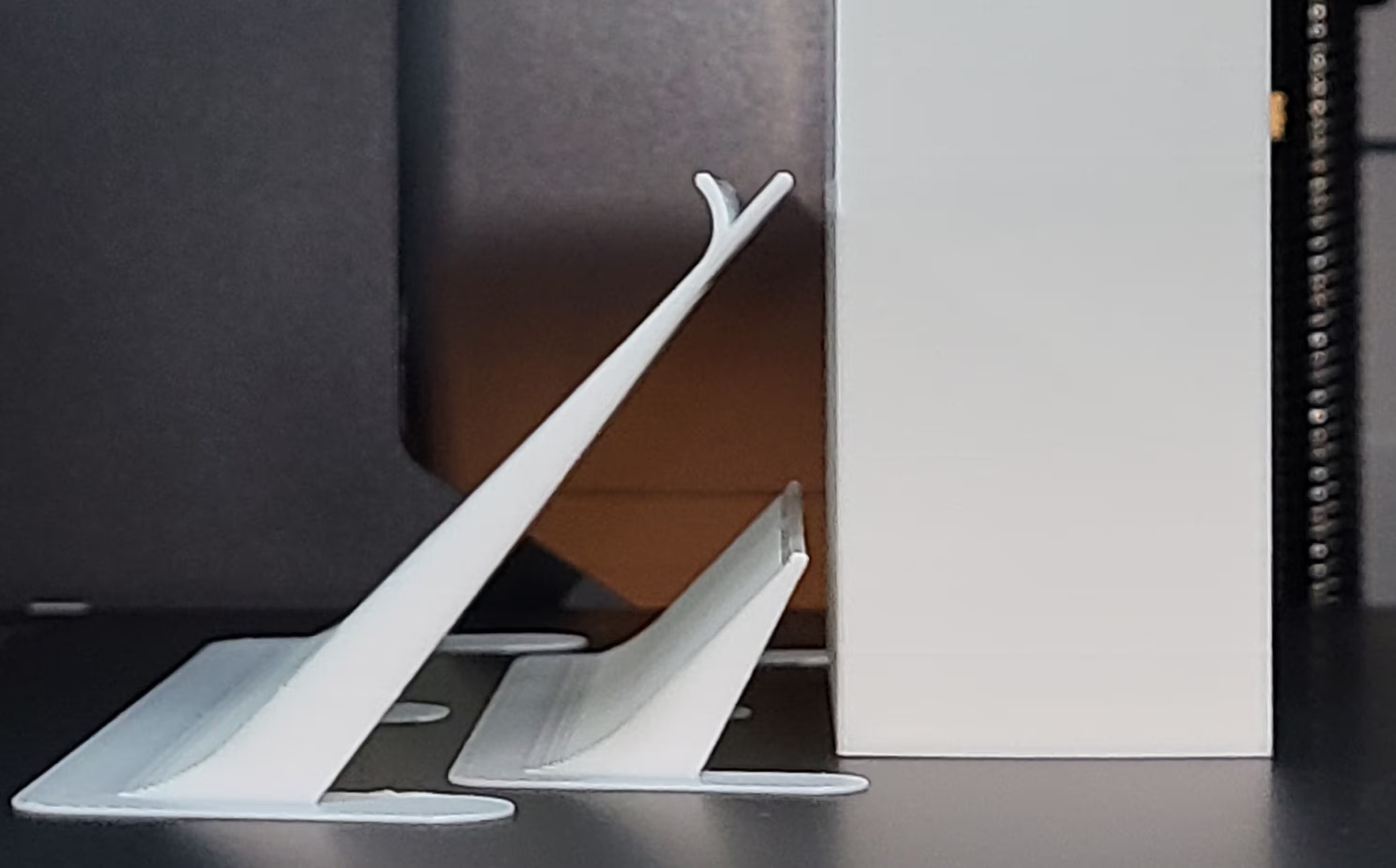
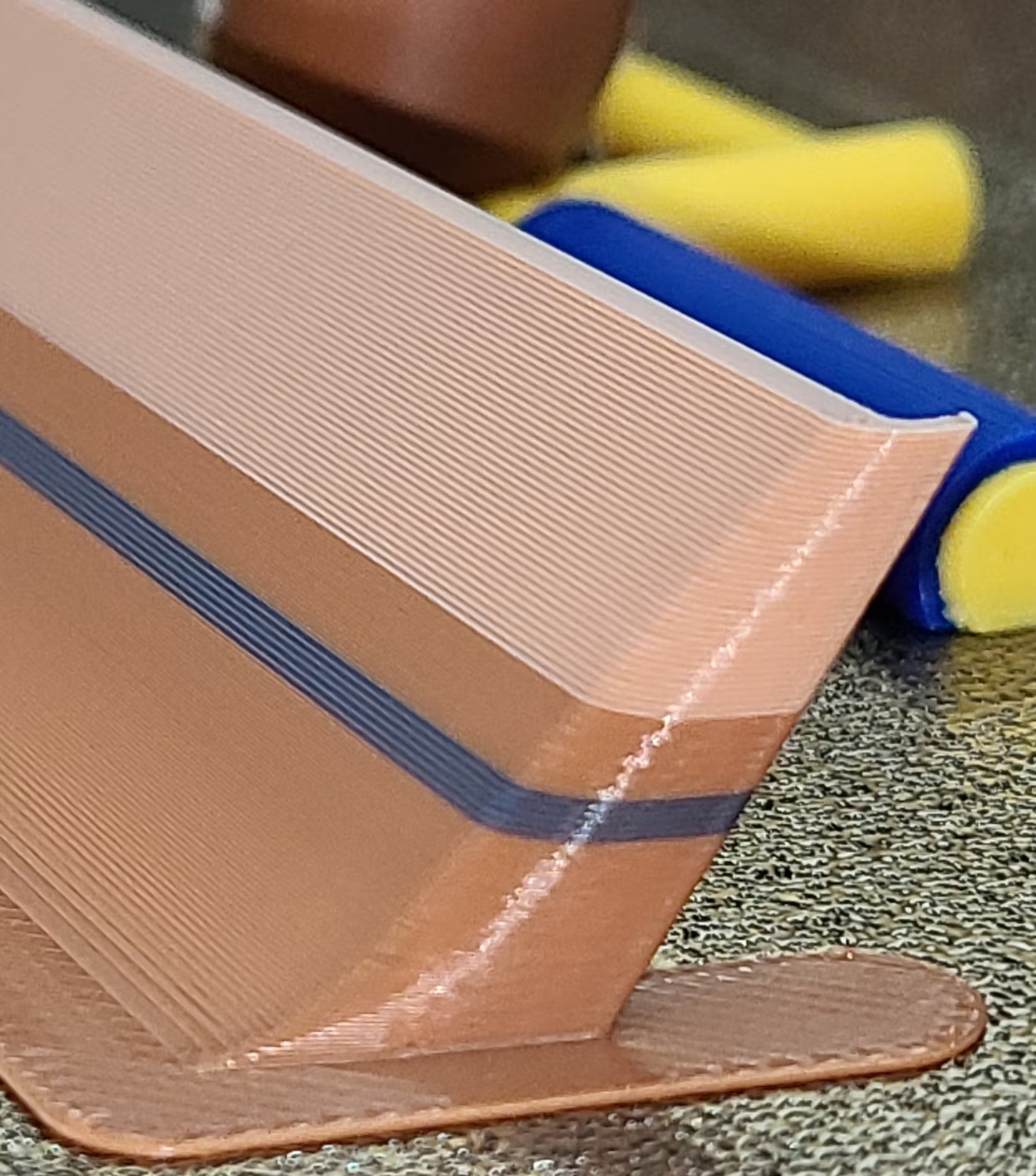
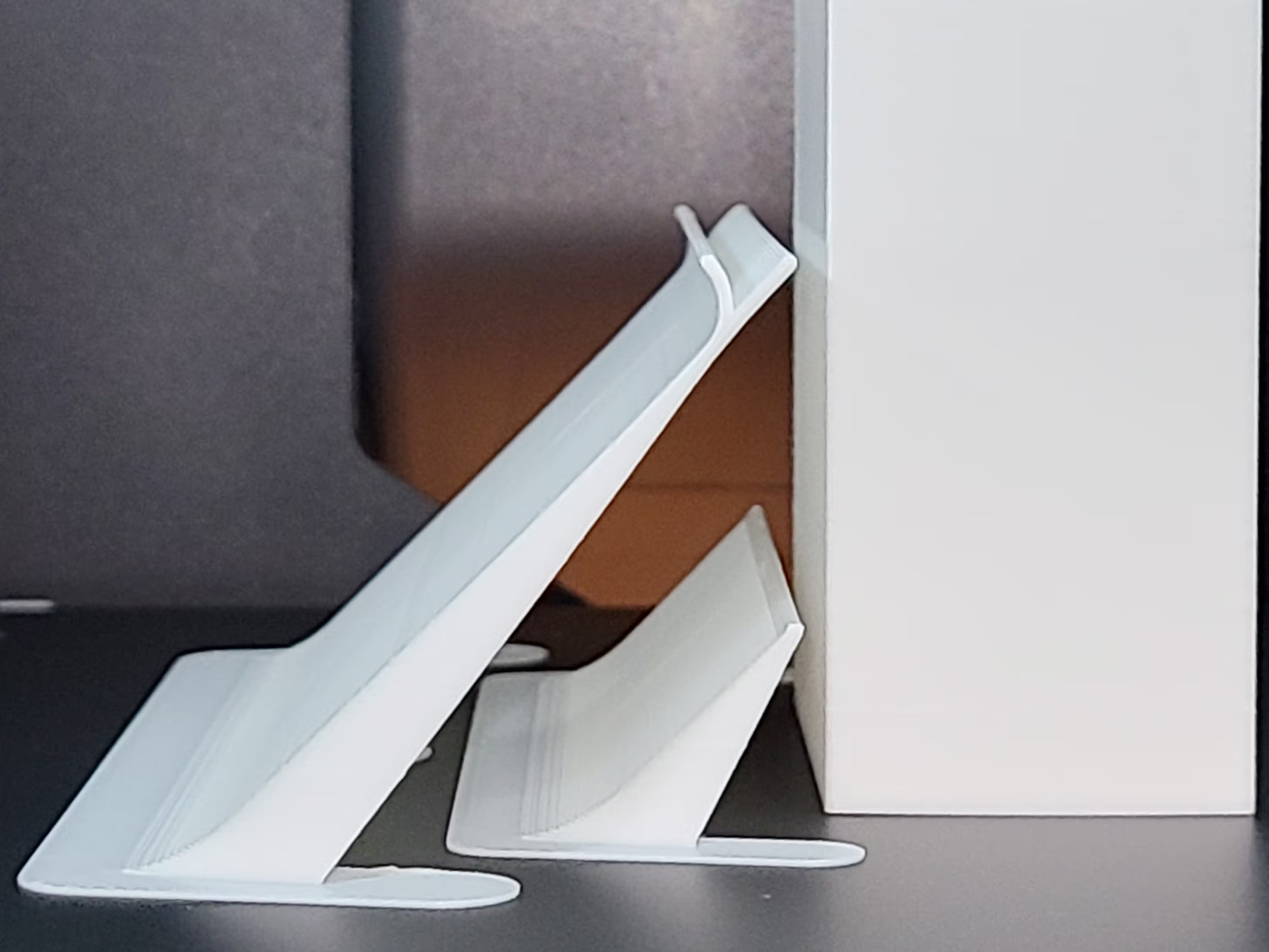
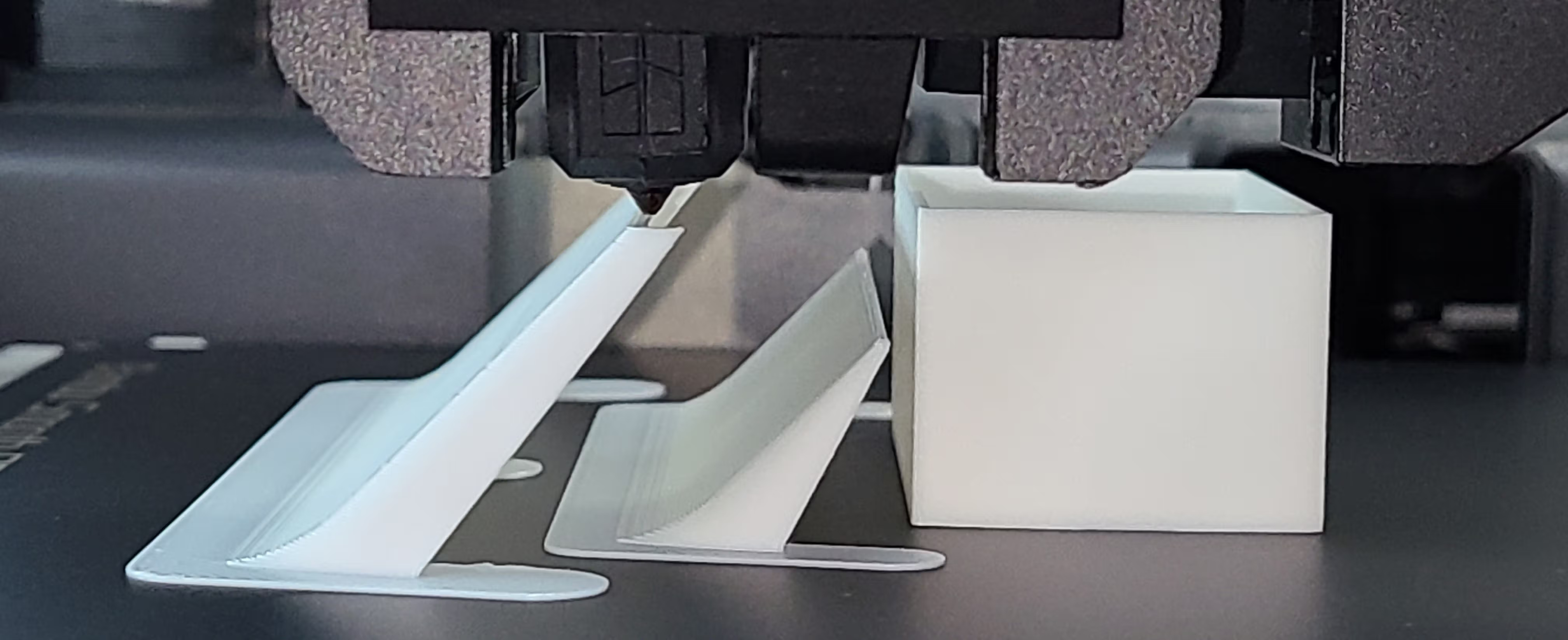
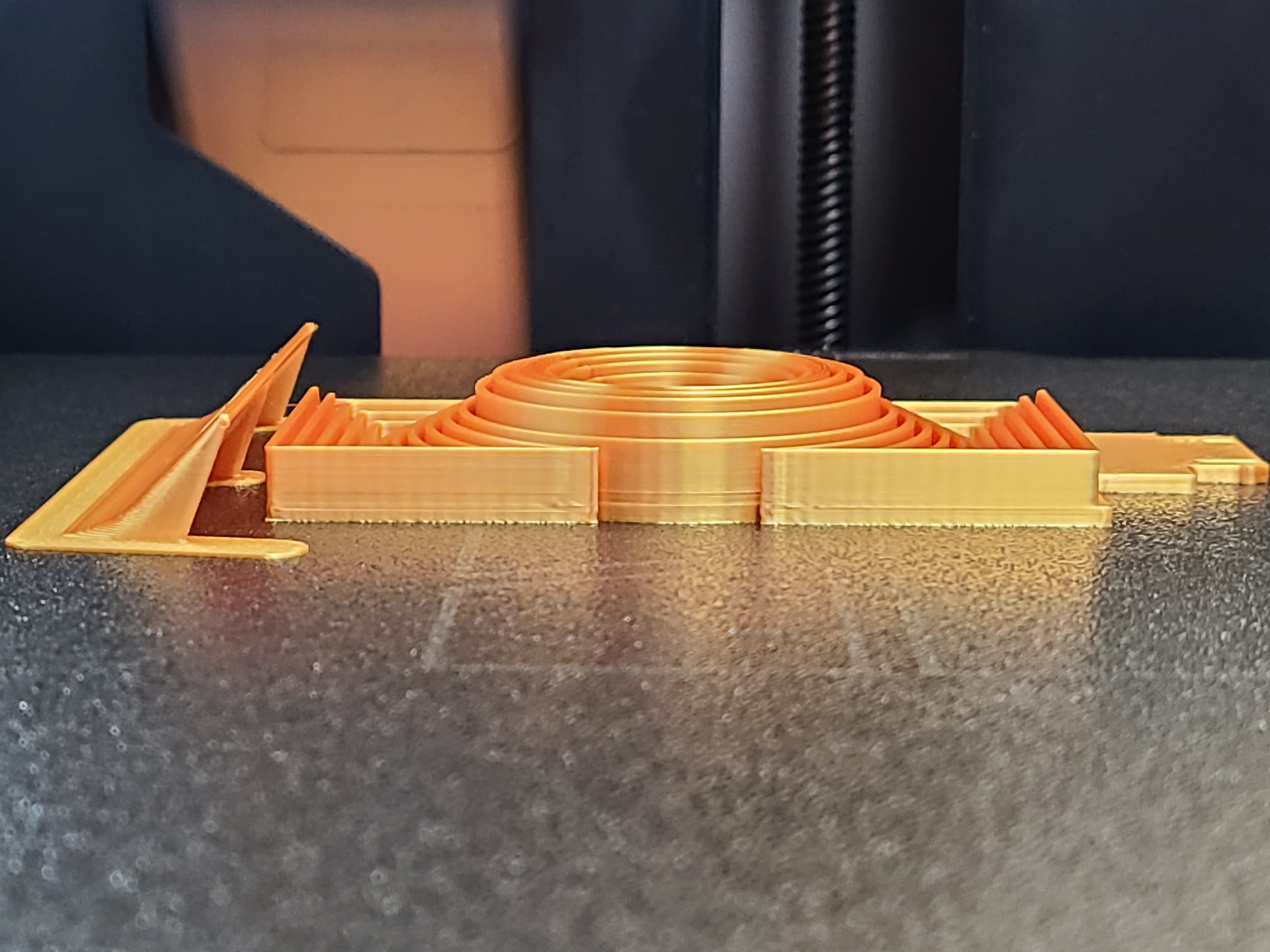
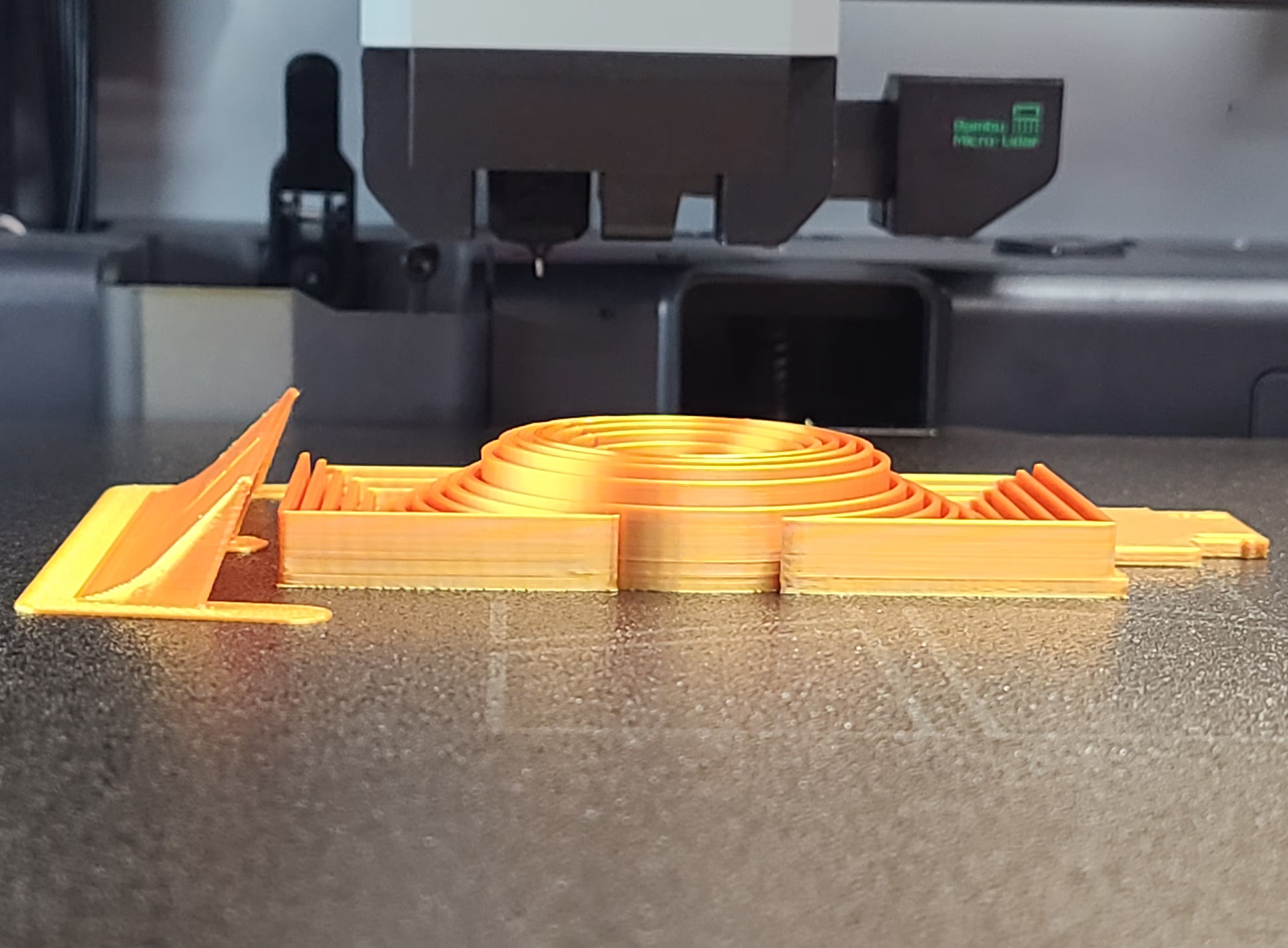
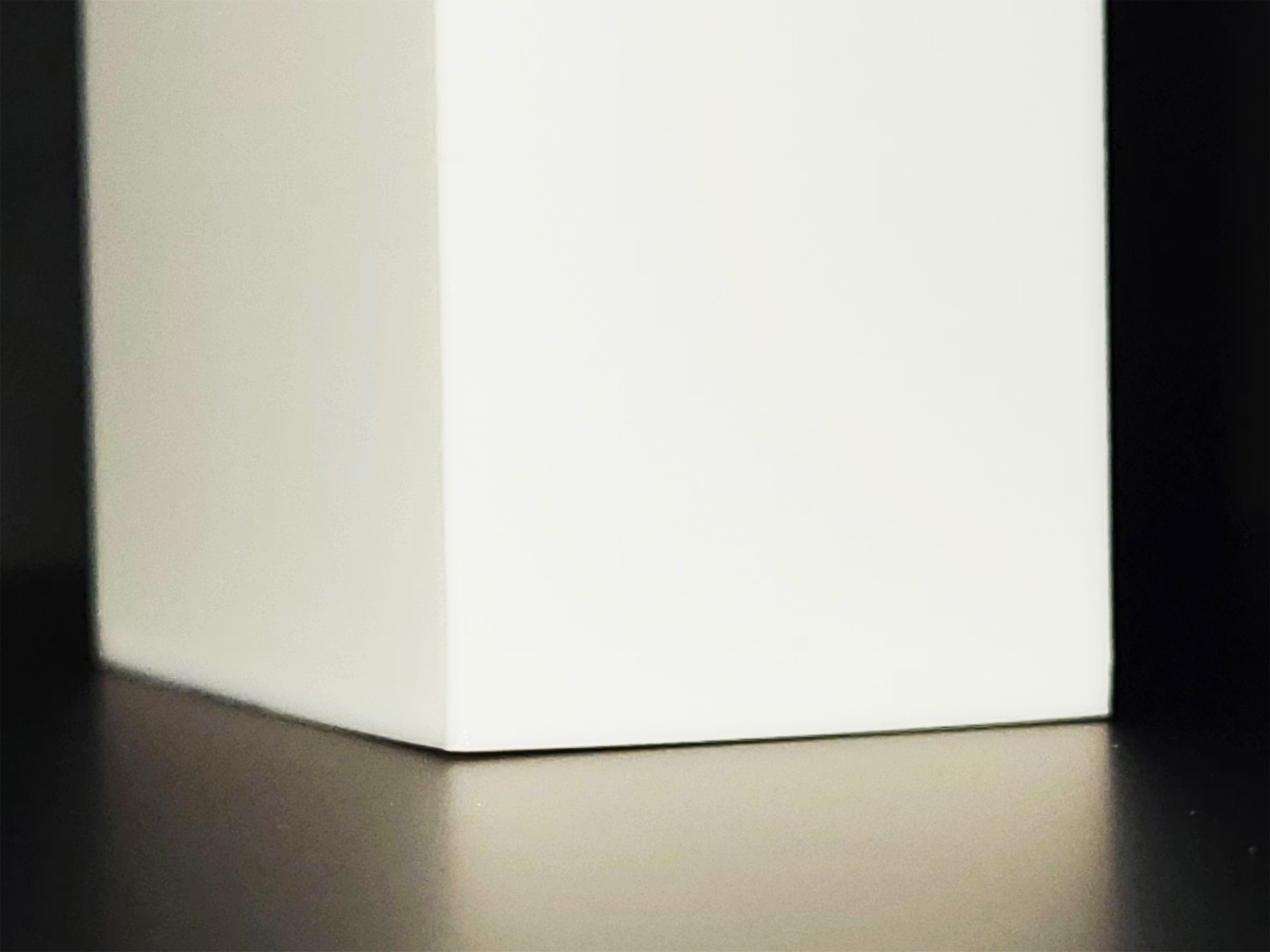
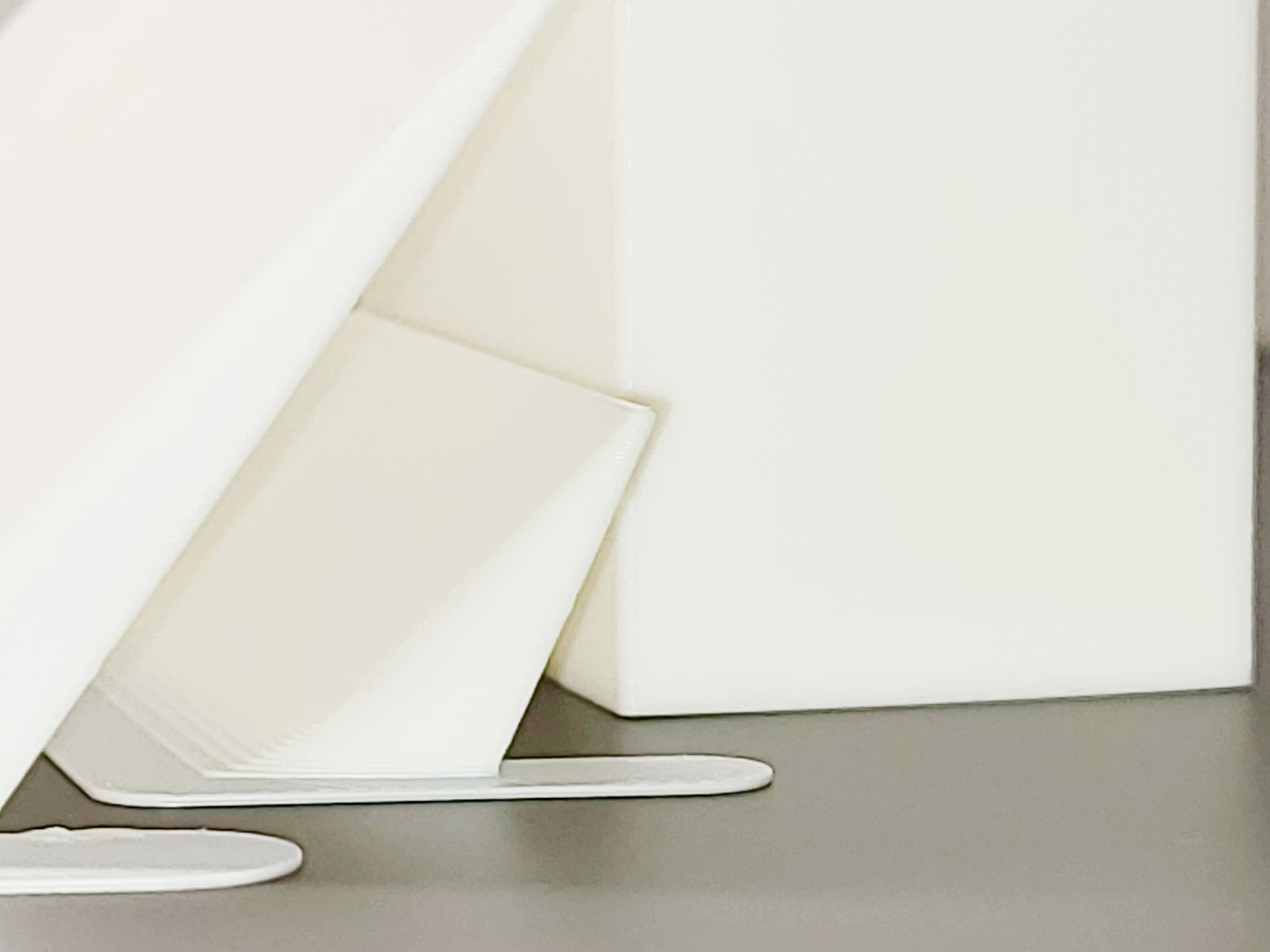
WarpShield Side View Curved and Straight Starter WarpShields positioned 2 mm from the tall test part

Back to Top

Available Variants

  • Straight WarpShield – best for models up to ~40 mm tall
  • Curved WarpShield – intended for tall parts; can be paired with a small Straight Starter WarpShield for early-layer protection
  • Parameter-driven Autodesk Fusion file and STEP files are available for customization

Note: Autodesk Fusion is available free for personal use. See Autodesk’s site for details:
https://www.autodesk.com/ca-en/products/fusion-360/personal

Which one should I use?

  • 0–40 mm parts: The Straight WarpShield is usually preferred. For best results, generate, resize, or trim the Straight WarpShield to be the same height as the model. An ~18 mm Curved WarpShield may also be sufficient, depending on geometry, material, and sensitivity to warping.
  • Parts taller than the WarpShield: A Curved WarpShield should always be used. The curve keeps airflow redirected upward as the print continues to grow above the shield.
  • Conservative default for tall parts: A 40 mm tall Curved WarpShield paired with a 15 mm tall Straight Starter WarpShield provides the widest margin of protection and is recommended for more warp-sensitive parts.
  • Optional (less conservative):You may be able to use a shorter Curved WarpShield (for example 18–30 mm tall) for tall parts, depending on geometry, material, and sensitivity to warping.

Straight Starter WarpShield (tall parts): When using a Curved WarpShield above ~30 mm tall — especially for tall parts that are warp-sensitive near the base — it can help to add a small Straight WarpShield closer to the model (typically ~15 mm tall). This improves airflow control during the earliest layers, before the main curved ramp becomes fully effective. For more details, see Curved WarpShield details.

Back to Top

Additional Printing Benefits (Multi-Color & Single-Color)

In addition to preventing fan-side warping, the WarpShield provides two major secondary benefits depending on your print mode.

1) Multi-Color Prints — Purge Into Object

When assigned as a purge object:

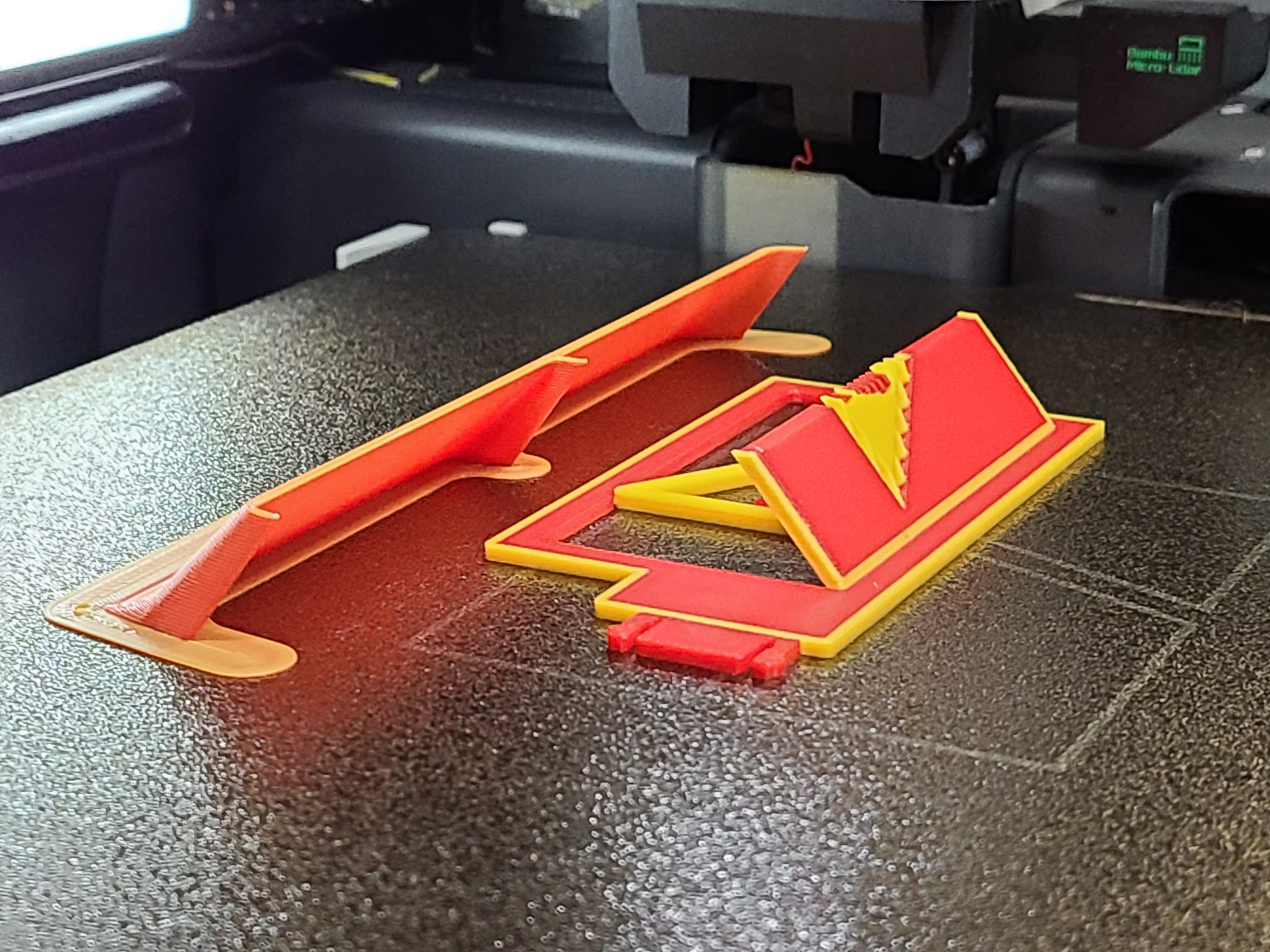
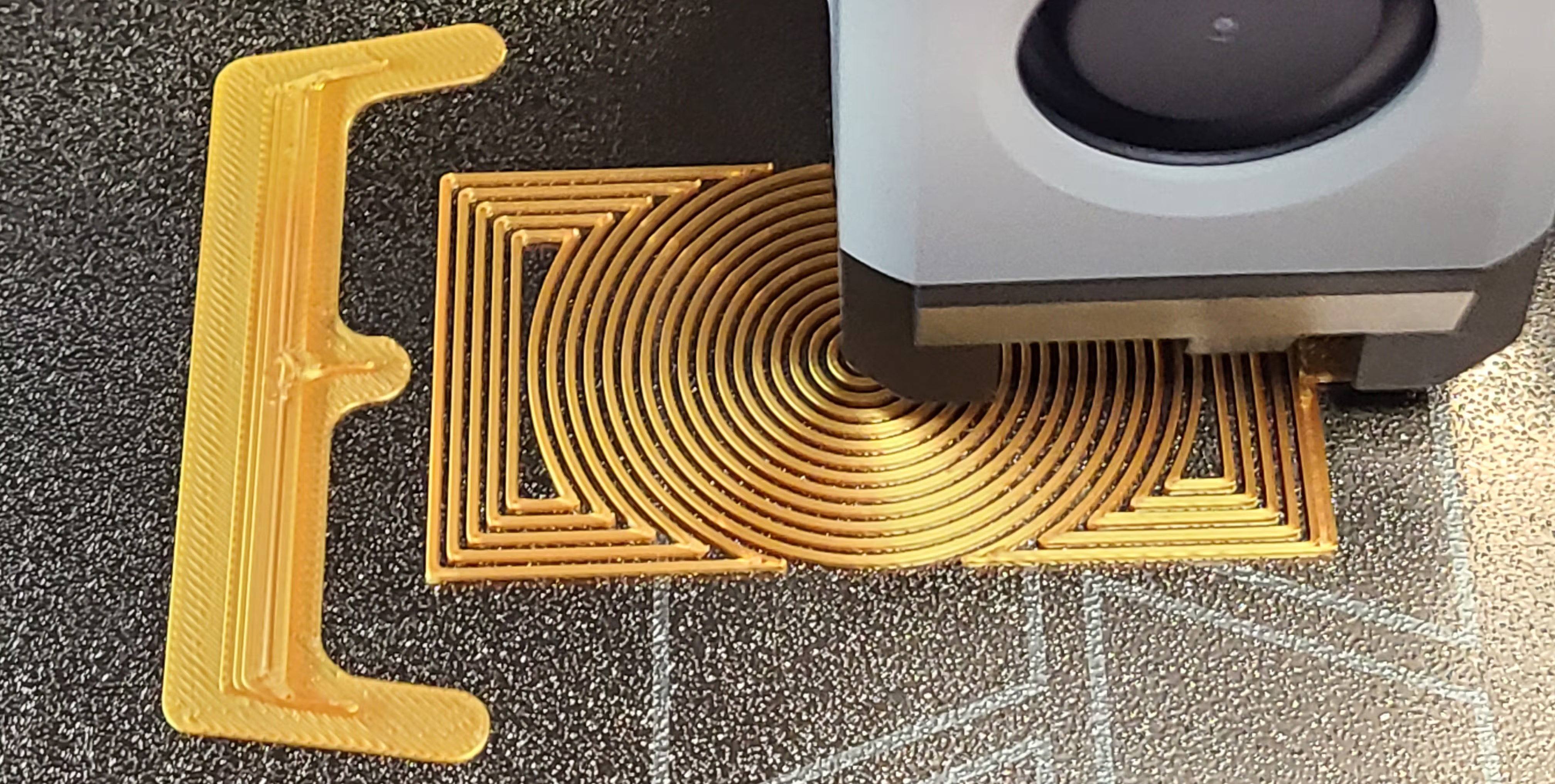
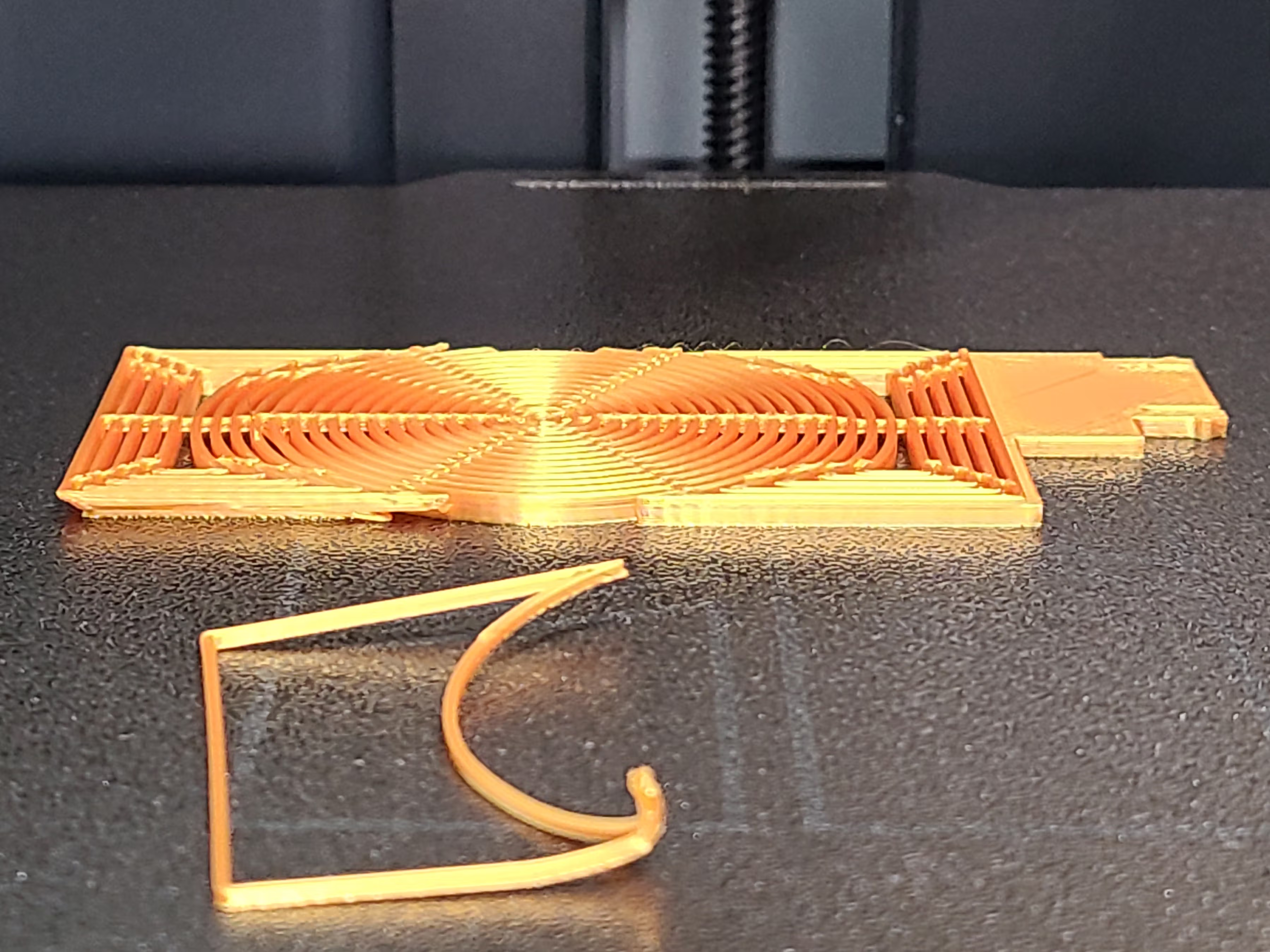
  • Purged material is deposited onto the WarpShield instead of wasted.
  • Depending on the print, some, most, or all of the WarpShield may be built from purge waste.
  • Part of the purge is converted into useful priming, allowing the nozzle to transition into steady, normal printing flow on the WarpShield before touching the model.
  • Reduces color contamination by ensuring the nozzle is flowing cleanly after a color change.
  • Keeps the first few millimeters of “dirty” or transitional extrusion off your part.
  • See WarpShield Instructions ➜ Purge / Priming Setup for configuration details.

2) Single-Color Prints — Layer-Start Anchoring

If you merge the WarpShield with your model and paint a seam on the center rib, the printer will often:

  • Begin layers on the WarpShield instead of the model.
  • Prime the nozzle cleanly each layer.
  • Improve extrusion stability and seam quality.
  • Improve surface consistency and reduce blobs/zits on the part.
  • See WarpShield Instructions ➜ Purge / Priming Setup for configuration details.

Note: Some prints may begin certain layers on the model instead — this is normal and slicer-dependent.

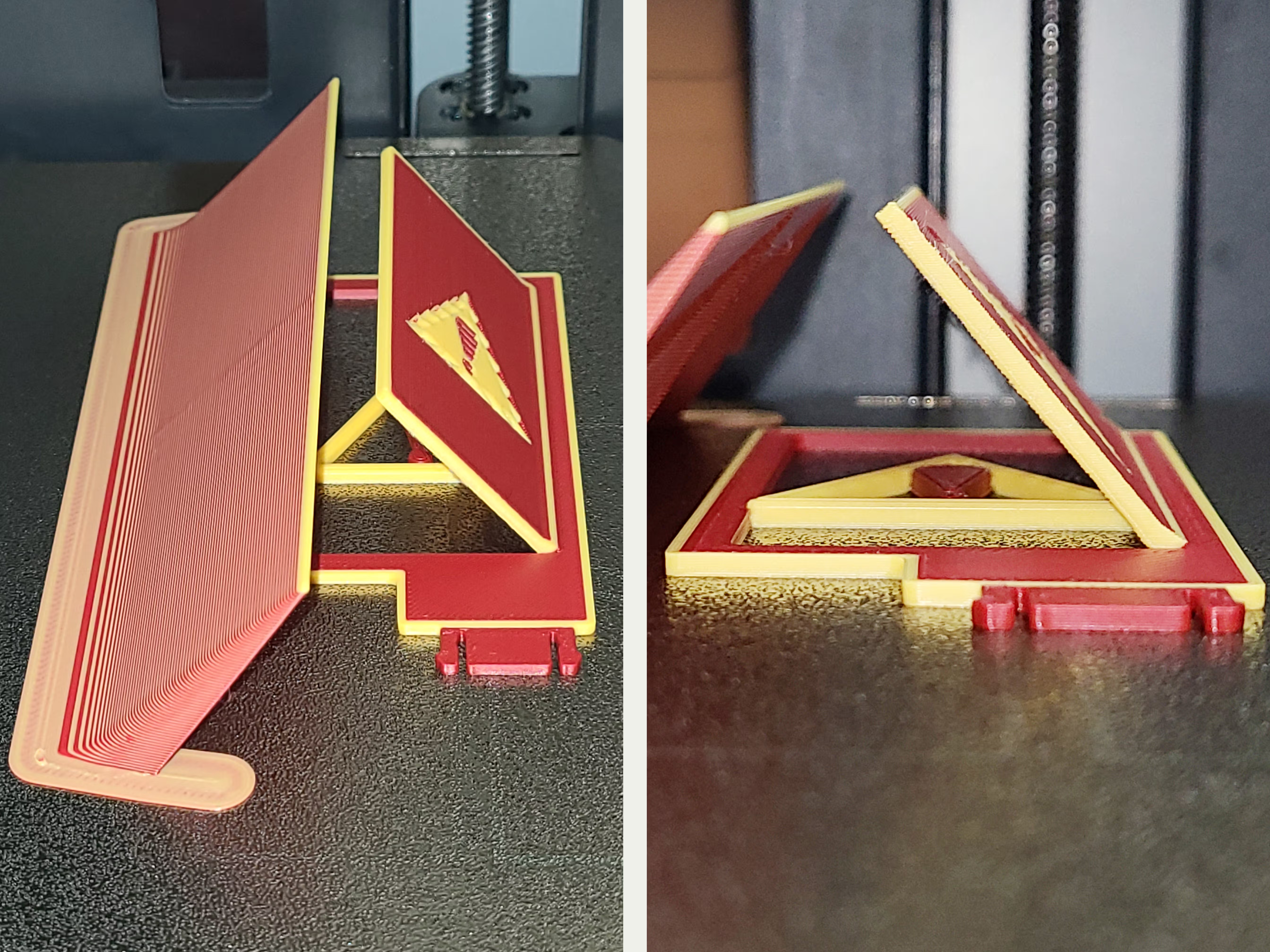
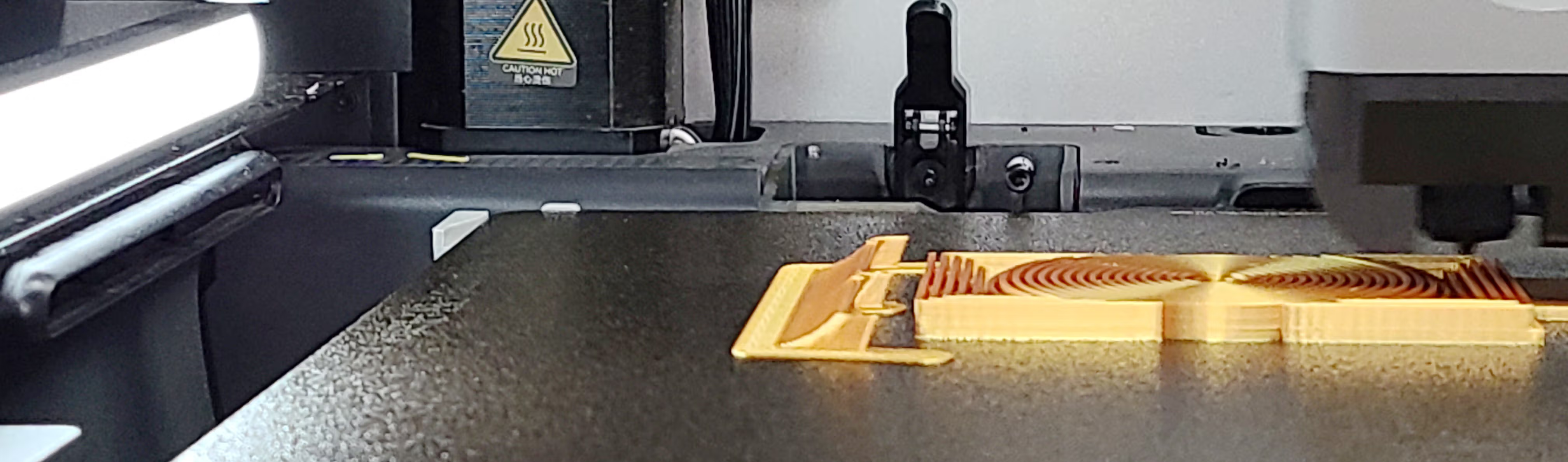
Purge View - Full Ramp

Back to Top

WarpShield Instructions

Auxiliary Fan Settings

  • With WarpShield: 70% or higher is safe for most parts.
  • Without WarpShield: set the auxiliary fan to 0% to avoid warping.

Fan and EmBlazeGuard Vortex-Matrix

IMPORTANT — Auxiliary Fan Startup: For best results, keep the auxiliary fan off (or at 0%) until the WarpShield reaches approximately 1 mm in height, so it can act as an effective airflow ramp and shield against the auxiliary fan’s side blast.

At a typical 0.20 mm layer height, this corresponds to about 5 layers. If you are using a smaller layer height, increase the number of layers accordingly. Once the WarpShield reaches ~1 mm tall, the auxiliary fan can be enabled safely.

This delay ensures the WarpShield is tall enough to redirect side airflow upward and along the actively printing layers, instead of allowing it to strike the lower layers of the protected model.


Simplest approach

The easiest way to control the auxiliary fan in Bambu Studio is to use the filament cooling settings, rather than inserting custom G-code.

  • For each filament used in the project, click the three dots beside the filament and select Edit
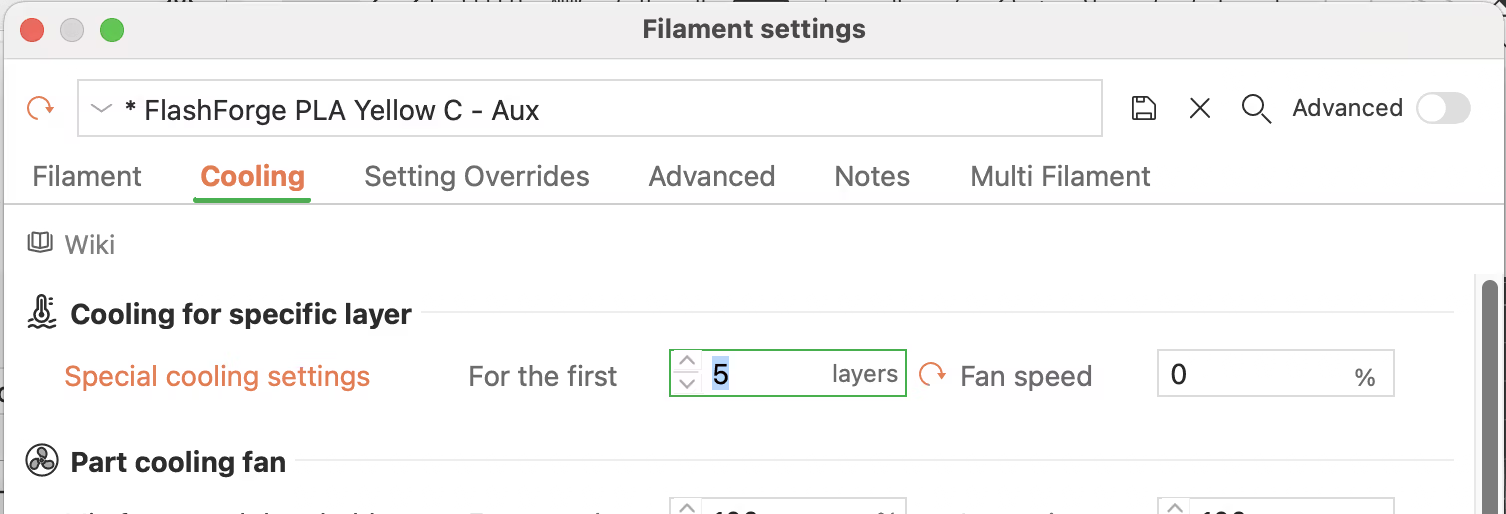
  • Open the Cooling tab and locate the Cooling for specific layer section
  • Set Special Cooling Settings to 0% for the first ~1 mm of print height (≈ 5 layers at 0.20 mm)
  • Repeat this setting for all filaments, including support or interface materials, or the fan will turn on and off within a layer if any filament has a higher cooling setting

Filament Special Cooling

Note: This method will also turn off the part cooling fan for the initial layers. This is generally fine for most parts and materials, and it simplifies setup while still allowing the WarpShield to function properly once the auxiliary fan is enabled.


Alternative approach (advanced)

You can also control the auxiliary fan by inserting custom G-code at specific layers. This method is most useful when you want to:

  • Disable only the auxiliary fan while keeping the part cooling fan active
  • Fine-tune cooling for very thin walls, fine details, or delicate early features
  • Apply different auxiliary fan behavior to specific height ranges rather than a fixed number of layers

However, this approach requires more care, especially in multi-color prints.

Important (Multi-color prints): In Bambu Studio, any color (filament) change re-applies the cooling values defined in the filament settings. This means that custom G-code fan commands can be overridden mid-layer when a color change occurs.

For multi-color prints, this can result in the auxiliary fan starting and stopping repeatedly during early layers, which may be worse than simply leaving both fans off briefly. In these cases, the Special Cooling Settings method described above is usually more predictable and reliable.

Print Time and Material Usage

To understand the real impact of the WarpShield on print time and filament usage, compare your model with and without the WarpShield included. Evaluating the WarpShield by itself can be misleading.

When printed alongside a model, the WarpShield often adds less time and material than expected because:

  • It is built gradually while the model is printing, rather than as a standalone part.
  • In multi-color prints, purge material that would normally be wasted can be routed into the WarpShield, reducing overall material waste.
  • Because purge extrusion is redirected into useful geometry, some of the time that would have been spent purging is instead used to build the WarpShield itself, reducing the net time impact.

As a result, the incremental cost of using the WarpShield is typically lower when it is printed with a model than when it is printed alone.

Purge/Priming Setup

Choose the setup below based on whether you are printing multi-color or single-color. The key differences are whether the WarpShield is merged with the protected part and the purge settings.

For a summary of what these configurations improve (purge efficiency, priming, seam quality), see Additional Printing Benefits. For creating different sizes, see Custom Sizes. For tall parts using the Curved + Straight Starter WarpShield combination, see Curved WarpShield.


Multi-Color Prints – Purge Into Object (DO NOT MERGE WITH PROTECTED MODEL)

  • Use this setup for AMS / AMS Lite or any multi-color workflow
  • Do not merge the WarpShield(s) with the protected model (this disables purge routing), but merge the Curved and Straight Starter WarpShields together if using both.
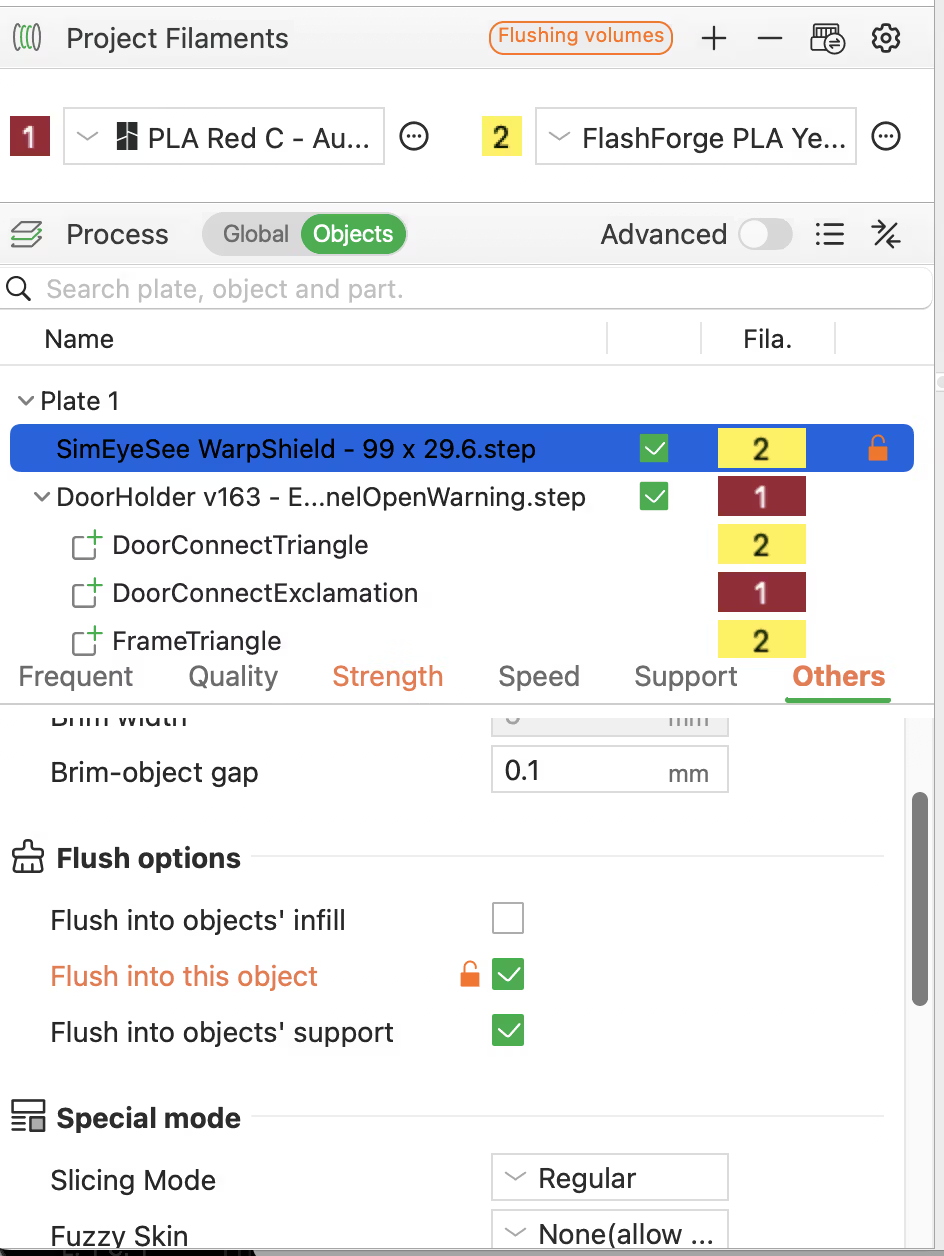
  • In the Process panel, switch from Global to Object
  • From the Object list, select the WarpShield or merged WarpShields
  • Open the Others tab and enable Flush into this Object
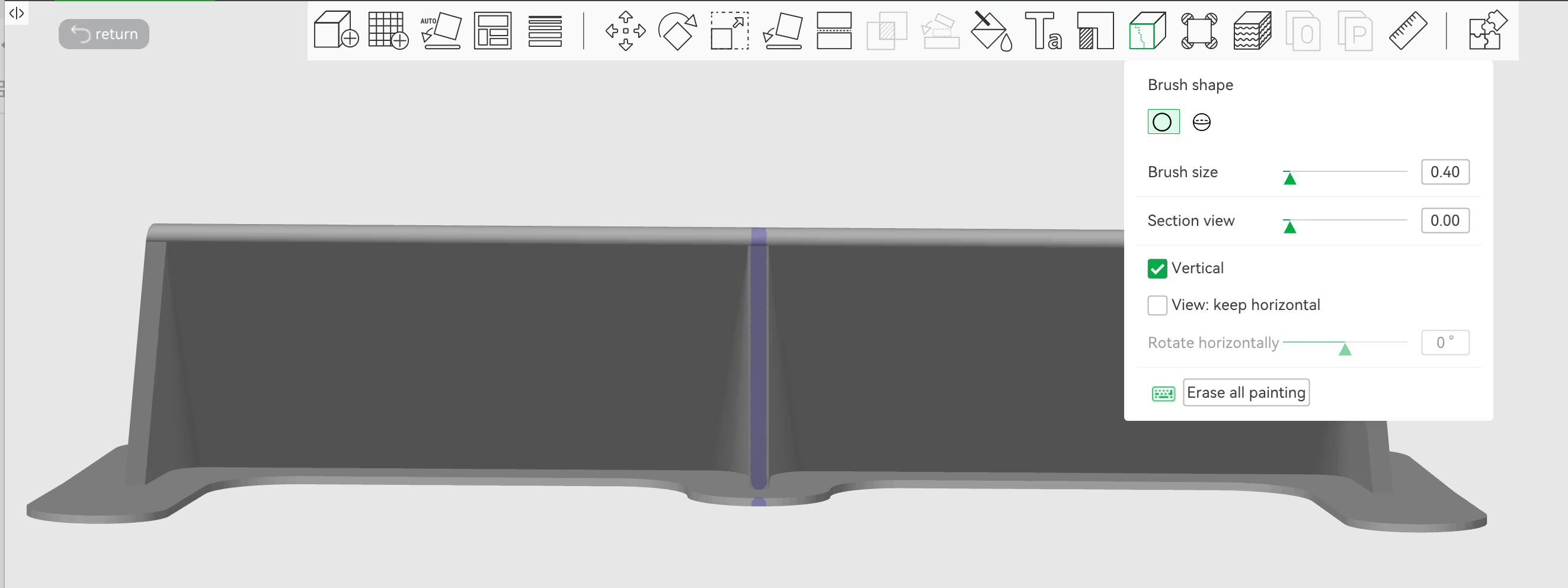
  • Seam should be on the center rib (paint it if not auto-selected)
  • Purge is redirected to WarpShield after the first color change on a layer (not at layer start)

Flush Into Object

Single-Color Prints – Layer-Start Anchoring (MERGING REQUIRED)

  • Paint the seam on the center rib (and the foot below it)
  • Paint the seam before merging for the simplest workflow, or use Seam Painting ➜ Section View if the parts are already merged
  • Merge required so the slicer can treat the WarpShield as the layer-start anchor. If you are using both a Curved and Straight Starter WarpShield, try merging just the WarpShields together or merging the model with both WarpShields to see which configuration results in the WarpShield being chosen as the layer start more often.
  • Note: Some layers may still start on the model instead — this is normal and slicer-dependent.

Seam painting on center rib

Why seam placement on the center rib matters: The slicer typically prints a small inner wall on the center rib first, followed immediately by the outer wall. When the seam is placed on the center rib, the nozzle is already positioned there at the start of each layer. Placing the seam on one of the outer ribs forces extra travel moves between ribs on every layer start, which can increase stringing, reduce the effectiveness of layer-start priming, and slightly increase print time due to repeated travel moves.


IMPORTANT: Maintain a gap of approximately 2–3 mm between the WarpShield and the part. This spacing allows the auxiliary fan’s airflow to be redirected upward cleanly. Placing the WarpShield too far away reduces its effectiveness, while placing it too close can create turbulence or clearance issues.

Back to Top

Custom Sizes (Fusion File & STEP Files)

A Parameter-driven Autodesk Fusion file is available to generate custom WarpShield sizes, along with STEP files you can scale or trim. Most users only need to set the dimensions of the part they are protecting, not the WarpShield itself.

Autodesk Fusion (Recommended)

Open the Fusion file and go to Modify ➜ Change Parameters. Under normal use, you only change these two parameters in the favorites at the top of the list:

  • partWidth — the width of the part being protected (not the shield)
  • partHeight — the height of the part being protected (not the shield)

The shield height follows the part height up to a maximum of 40 mm (and a minimum of 5 mm for the Straight WarpShield and 18 mm for the Curved WarpShield).

Parameter Update Notes (Fusion Stability)

In most cases, changing partWidth and partHeight will update the WarpShield seamlessly. However, because the model is fully parametric, Fusion may occasionally report a draft, fillet, or feature error when large parameter changes are made at once.

If Fusion reports an error after changing parameters:

  • First, run Modify ➜ Compute All. In many cases this resolves the issue without further changes.
  • If the error remains, undo the change and try adjusting partWidth and partHeight in the opposite order.
  • If the error still persists, change the values in two or more smaller steps to gradually reach your target size.

This allows Fusion to recompute dependent features progressively and avoids geometry failures.

Best practice: Keep a saved copy of the original WarpShield file (which uses the maximum height and width). Starting from the original file reduces the chance of parameter errors. If issues persist, simply re-download the original file and try again.

Important: After changing parameters, click Modify ➜ Compute All before exporting the STEP file. This ensures all geometry updates correctly and prevents export defects.

The WarpShield automatically adjusts its ramp size based on your part dimensions. The ramp height increases with part height until it reaches rampHeightMax, ensuring the shield does not become larger than necessary.

The WarpShield is also designed to be slightly wider than the protected part. This prevents side airflow from slipping around the edges and helps maintain consistent airflow redirection as part height increases.


Which WarpShield should I generate?

  • 0–40 mm parts: generate the Straight WarpShield. For best results, generate or trim it to be the same height as the part. An ~18 mm Curved WarpShield may also be sufficient, depending on geometry, material, and sensitivity to warping.
  • Parts taller than the WarpShield: generate a Curved WarpShield. The curved profile maintains upward airflow redirection as the print grows above the shield.
  • Conservative default for tall parts: generate a 40 mm tall Curved WarpShield paired with a 15 mm tall Straight Starter WarpShield for the widest margin of protection on warp-sensitive parts.
  • Optional (less conservative): You may be able to generate a shorter Curved WarpShield (for example 18–30 mm tall) for tall parts, depending on geometry, material, and sensitivity to warping.

Straight Starter WarpShield (tall parts): When using a Curved WarpShield above ~30 mm tall, and especially for tall parts that are warp-sensitive near the base, also add a small Straight WarpShield (~15 mm tall) placed closer to the part. This improves airflow control during the earliest layers before the main curved shield becomes fully effective. See Curved WarpShield for details.


If Your Model Is Shorter Than the Generated WarpShield

If your model is shorter than the smallest WarpShield generated, simply cut the WarpShield down to the same height as your model. This is quick and easy to do directly in the slicer.

In Bambu Studio:

  1. Select the WarpShield.
  2. Click the Cut tool.
  3. In the Cut dialog, set the Height field to the height of your part.
  4. Uncheck Object A so the top portion is discarded.
  5. Click Perform Cut.

This preserves the correct base geometry and airflow behavior while matching the shield height exactly to your part.

Advanced Parameters (Normally Do Not Change)

These parameters exist to keep the model stable and efficient. In normal use, you should not change them:

  • rampHeightMax
  • rampHeightMinCurved
  • rampHeightMinStraight

IMPORTANT: Do not reduce rampHeightMinCurved or rampHeightMinStraight. If the ramp height is allowed to go below the current minimums, Fusion can produce geometry defects or failures.

STEP Files (Alternative)

If you prefer using the STEP files, you may:

  • Scale the WarpShield to fit your part
  • Trim/cut the top to match your part height

STEP File Naming Format

Each STEP file name describes the WarpShield type and its key dimensions:

  • Straight or Curved — WarpShield type
  • P — protected part width (mm)
  • S — resulting shield width (mm)
  • Hshield height (mm)

Example filenames:

  • SimEyeSee WarpShield v47 - Straight - P25 S64.4 H20.step
  • SimEyeSee WarpShield v47 - Curved - P50 S100.8 H40.step

This makes it easy to identify the closest pre-generated WarpShield and decide whether minor scaling or trimming is needed.

If you are protecting a tall part, use the Curved STEP for the main WarpShield and create a smaller Straight Starter WarpShield that is narrower than the Curved WarpShield so it nests cleanly inside it, but still wider than the part so side airflow is redirected away from the part rather than slipping around its edges. Trim or scale the starter shield to ~15 mm in height. See Curved WarpShield for details.

Back to Top

Curved WarpShield (For Tall Parts)

Tall parts are harder to protect because the auxiliary fan’s side airflow can spread, spill, and change angle as it rises. The Curved WarpShield is designed to guide that airflow upward and away from the lower layers while still allowing strong cooling to reach upper features.

Why the “Curl + Straight Extension” Top Exists

  • The curved section (curl) keeps airflow attached and lifting upward, extending protection for taller prints. It helps prevent the fan-side jet from dropping back down into the lower layers.
  • The short straight extension helps when airflow from the auxiliary fan approaches the top of the shield at a downward angle as the print grows taller than the WarpShield. It helps prevent air that rides over the curve from being redirected downward toward the lower layers.

Together, the curve and straight extension act like a controlled “handoff,” keeping airflow moving upward instead of creating a downward rebound that can re-cool the base region.

Why Use a Smaller Straight “Starter” WarpShield

When is the Starter WarpShield helpful? If the Curved WarpShield is tall enough that its longer ramp footprint places the leading edge noticeably farther from the part at the start of the print, an additional small Straight WarpShield is recommended. It restores close-in airflow redirection during the earliest layers, where fan-side warping typically begins.

Because the Curved WarpShield uses a taller, longer ramp to redirect airflow for tall parts, its leading edge can be positioned farther away from the model at the start of the print. Adding a small Straight WarpShield closer to the part improves airflow control during the earliest layers, where fan-side warping typically begins.

A good default height for the Straight Starter WarpShield is 15 mm. It adds little material/time but greatly improves protection during the most warp-sensitive phase.

How the Two WarpShields Work Together

  • Straight Starter WarpShield (15 mm): protects the earliest layers close to the part where distortion typically starts.
  • Main Curved WarpShield (capped height): takes over as the print grows, guiding airflow upward and keeping cooling effective on upper layers.

Curved and Straight Starter WarpShield

Choosing Curved WarpShield Height (Conservative vs Optimized)

The suggested 40 mm height for the Curved WarpShield is a deliberately conservative value. It is designed to reliably protect a wide range of tall, warp-sensitive geometries without requiring tuning, while keeping print time and material usage reasonable.

Shorter Curved WarpShields can often be used successfully for tall parts. When the printed part grows taller than the WarpShield, the curved geometry at the top of the shield lifts and guides auxiliary-fan airflow upward along the model, keeping it away from the most warp-sensitive lower layers.

As a practical guideline, when using a Curved WarpShield around 30 mm tall or more, the shield may sit too far from the model during the earliest layers to effectively redirect the auxiliary fan’s side airflow. In these cases, adding a small Straight Starter WarpShield closer to the part improves airflow control where warping typically begins.


Using a Shorter Curved WarpShield for Tall Parts

If your part is not highly warp-prone, you can often use a shorter Curved WarpShield to reduce material usage and print time while still lifting auxiliary-fan airflow away from the lower layers. The more warp-prone the geometry (thin walls, long straight edges, sharp corners, minimal bed contact), the more conservative you should be with shield height and early-layer airflow control.

Rule of thumb (45° wall): Except for the small bottom fillet and the curved top, the Curved WarpShield wall is ~45°. That means each millimeter of shield height typically corresponds to about a millimeter of ramp length. If you want the shield’s leading edge to be closer to the part during the earliest layers, a shorter Curved WarpShield naturally starts closer because it has a shorter ramp footprint.

The 40 mm Curved WarpShield remains the safest default for unknown or highly warp-sensitive parts. If you choose a shorter Curved WarpShield and see early fan-side lift or corner curl, simply increase shield height or add the Straight Starter WarpShield described above.

Fusion Method (Recommended)

  1. Set partWidth and partHeight to your real part dimensions and generate the main Curved WarpShield.
  2. Then set partHeight to 15 mm while keeping partWidth the same to generate the Straight Starter WarpShield.

The parameter formulas ensure the Straight Starter WarpShield remains wide enough to be effective, but it will usually be narrower than the full-height Curved WarpShield — allowing it to nest cleanly inside the larger one. It is also normal and OK if the brims overlap when the two WarpShields are nested in the slicer. When the WarpShields are merged as one part, any overlapping brims will become a single joined brim. If the starter shield does not nest inside the Curved WarpShield, slightly reduce partWidth and regenerate the starter shield until it fits properly.

STEP Method

  • Use the Curved STEP as the main WarpShield.
  • Create the Straight Starter WarpShield by trimming or scaling the height down to ~15 mm. The starter shield should be narrower than the Curved WarpShield so it nests cleanly inside it, but still wider than the part to prevent side airflow from slipping around the shield and reaching the part directly.
  • Place the starter shield closer to the part than the main Curved WarpShield (same auxiliary-fan side), maintaining your normal 2–3 mm gap. Brims of the WarpShields may overlap; this is normal.

IMPORTANT: Maintain a gap of approximately 2–3 mm between the WarpShield and the part. This spacing allows the auxiliary fan’s airflow to be redirected upward cleanly. Placing the WarpShield too far away reduces its effectiveness, while placing it too close can create turbulence or clearance issues.

Back to Top

Why It Works

Rather than simply blocking airflow, the SimEyeSee WarpShield reshapes it into a controlled draft upward and over. This prevents the auxiliary fan from overcooling the lower layers (where warping typically begins), while focusing strong, useful cooling on the actively printing layers where it improves print quality.

Simple barriers tend to create turbulence and uneven pressure zones. The WarpShield is designed as an airflow ramp, guiding the high-velocity side blast upward and over the print instead of stopping it abruptly.

Designs with thin walls, fine details, and overhangs benefit significantly from strong auxiliary fan cooling, but those same features can also make parts especially vulnerable to fan-side warping.

This was the case with the EmBlazeGuard panels, which rely on aggressive cooling for detail quality, yet would warp or lift when exposed directly to side-blast airflow. The SimEyeSee WarpShield was developed to resolve that conflict — preserving auxiliary cooling benefits while protecting the lower layers where warping typically begins.

  • The inclined ramp lifts lateral airflow away from lower layers, reducing fan-side shrinkage and warping.
  • Air is redirected upward and over the print, so upper features still receive cooling where it matters most.
  • The backward curl (Curved variant) keeps airflow attached and lifting for taller prints, extending the effective shielding range.
  • The WarpShield's thin ~1 mm walls minimize material usage while maintaining rigidity and fast print times.
  • Side flares spread airflow more evenly, helping avoid localized cold spots and sharp temperature gradients.

The result is balanced cooling: lower layers are protected, while upper layers still benefit from strong airflow. This is why the WarpShield allows safe use of 70%+ auxiliary fan for cleaner overhangs, sharper bridges, and crisper fine details without the usual fan-side distortion. In testing, the WarpShield itself showed no signs of warping, even when placed close to the auxiliary fan and exposed to full side airflow.


Airflow visualization or diagram

Back to Top

WarpShield in Practice

You’ve read why it works — now here’s what it actually does.

The effectiveness of the SimEyeSee WarpShield was validated using a series of controlled, progressively more demanding real-world tests designed to replicate common fan-side warping failures. Tests were performed using both single-color and multi-color prints, with auxiliary fan levels ranging from 70% to 100%, and with the auxiliary fan kept off for the first ~5 layers (1mm) to allow the WarpShield to reach sufficient height before side airflow was applied.


Warping & Failure Comparison — EmBlazeGuard Open Warning Panel

Initial testing used the Open Warning EmBlaze Panel from EmBlazeGuard, because it provides real-world geometry that is prone to fan-side warping and can also lift off the bed when the auxiliary fan overcools the fan-facing lower layers.

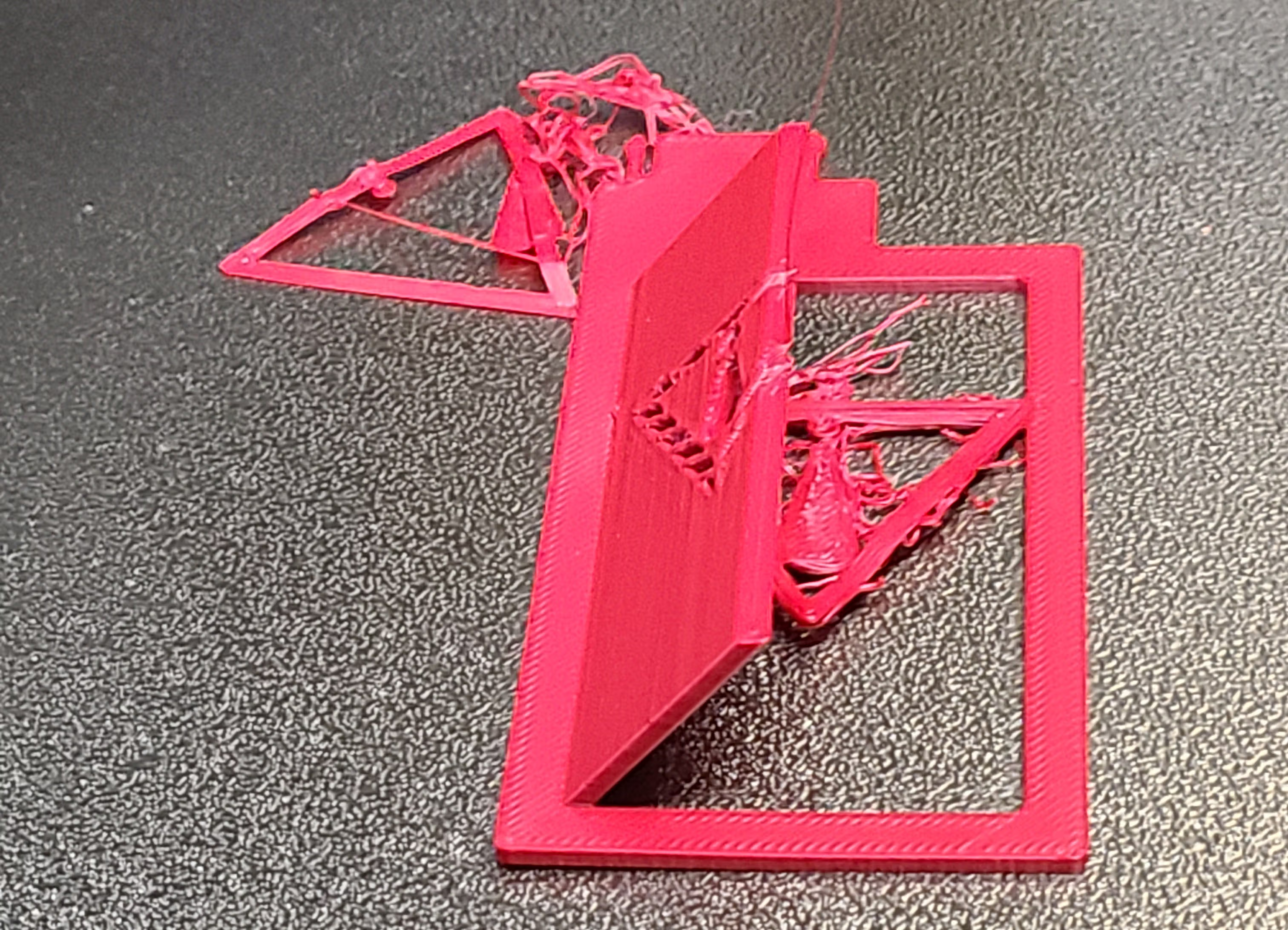
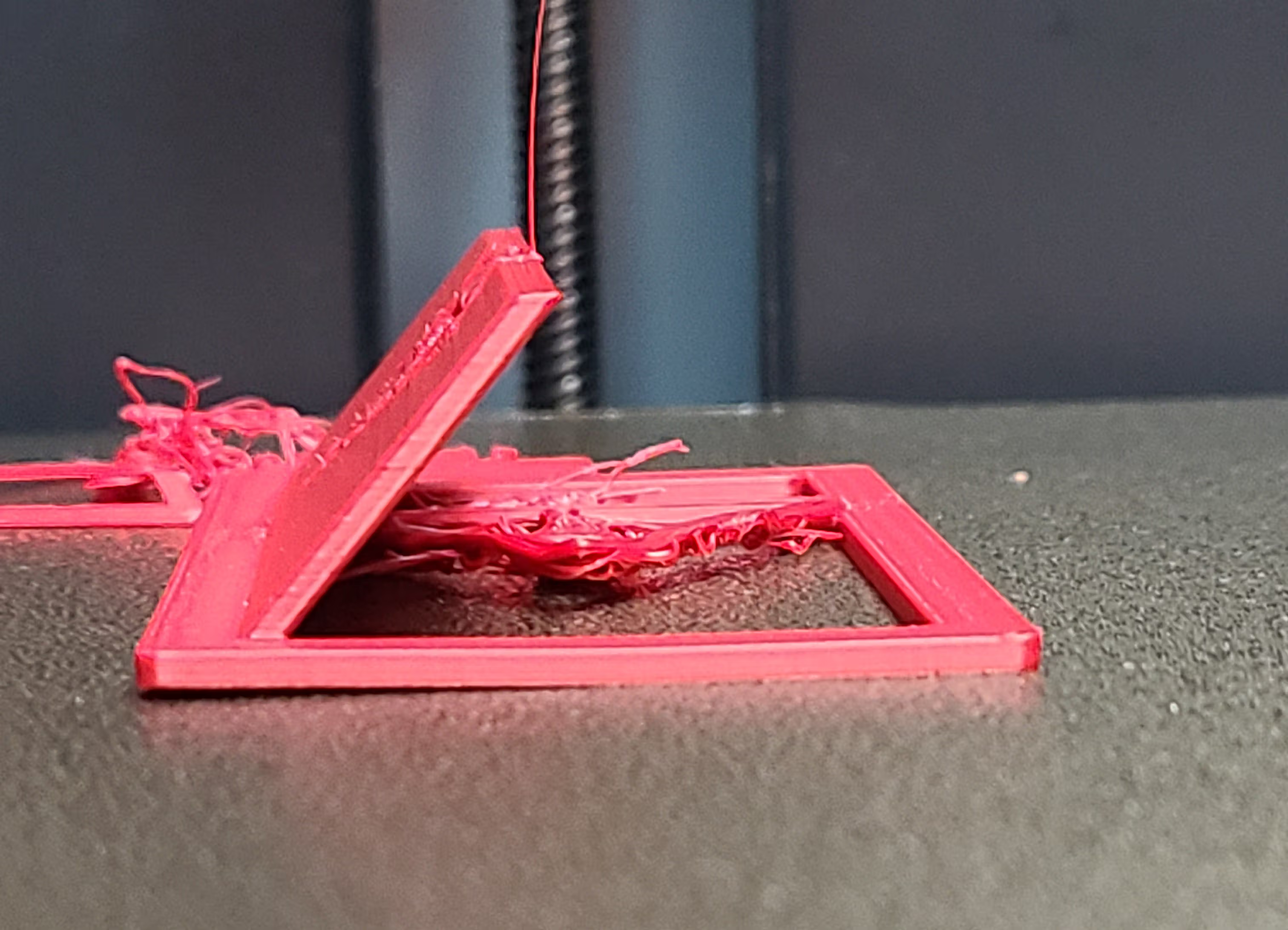
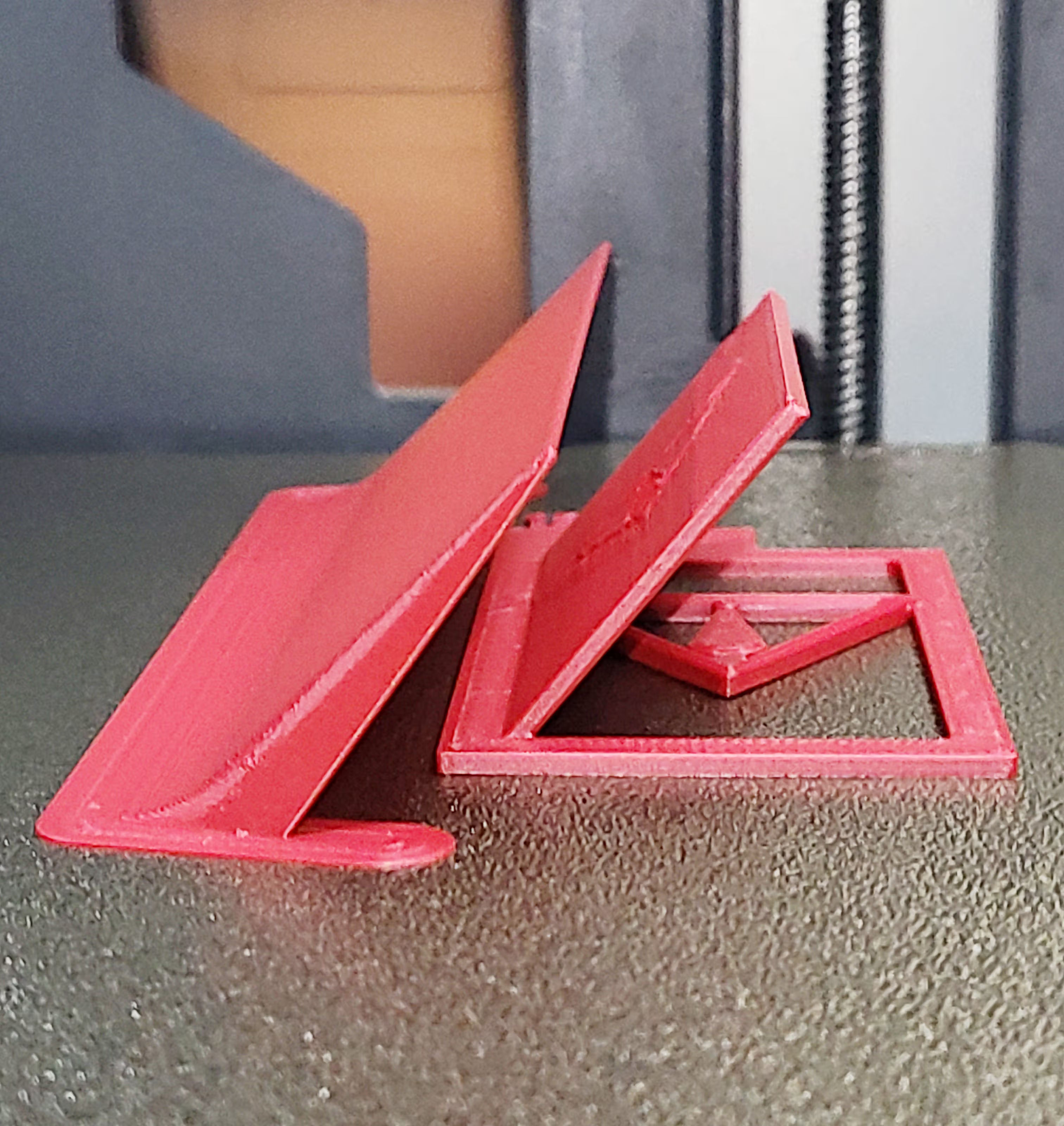
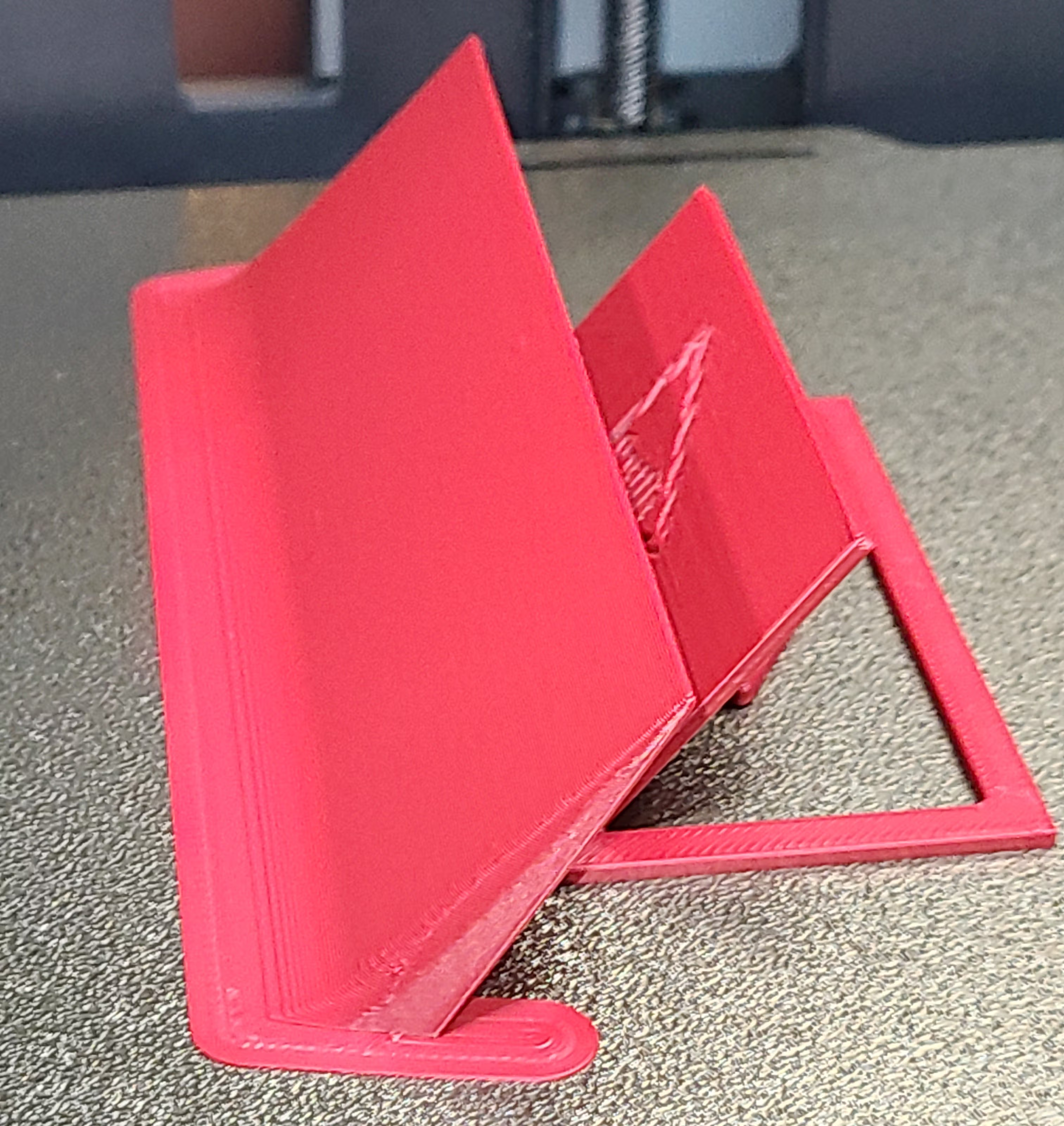
The first print was run without a WarpShield at 70% aux fan and exhibited fan-side warping, partial bed lift, and eventual spaghetti failure. The same panel was then printed again with a Straight WarpShield under identical conditions and remained flat and stable for the entire print.

This confirms the core behavior: the WarpShield redirects side-blast airflow away from the lower layers where warping begins, while still allowing strong cooling higher up where it improves surface quality and overhang performance.


Door Angle Stress Tests — EmBlazeGuard Panel

After validating baseline behavior in earlier tests, the Open Warning EmBlaze Panel was tested with the printer door deliberately angled toward the auxiliary fan to increase direct side airflow onto the part. This configuration is intentionally aggressive, as the door normally helps deflect some airflow away from the print.

Two multi-color tests were performed with the door angled toward the fan. The first was printed at 70% auxiliary fan, and the second increased the auxiliary fan to 100% to create a worst-case airflow scenario.

In both cases, the SimEyeSee WarpShield remained effective at redirecting airflow upward, preventing fan-side warping while allowing the increased cooling to benefit fine details and thin features.

Even at 100% auxiliary fan in a multi-color print — a configuration that would normally cause early-layer warping or lifting — the WarpShield maintained stability on the fan-facing side.


Vortex-Matrix Thin-Wall Stress Test — EmBlazeGuard Panel

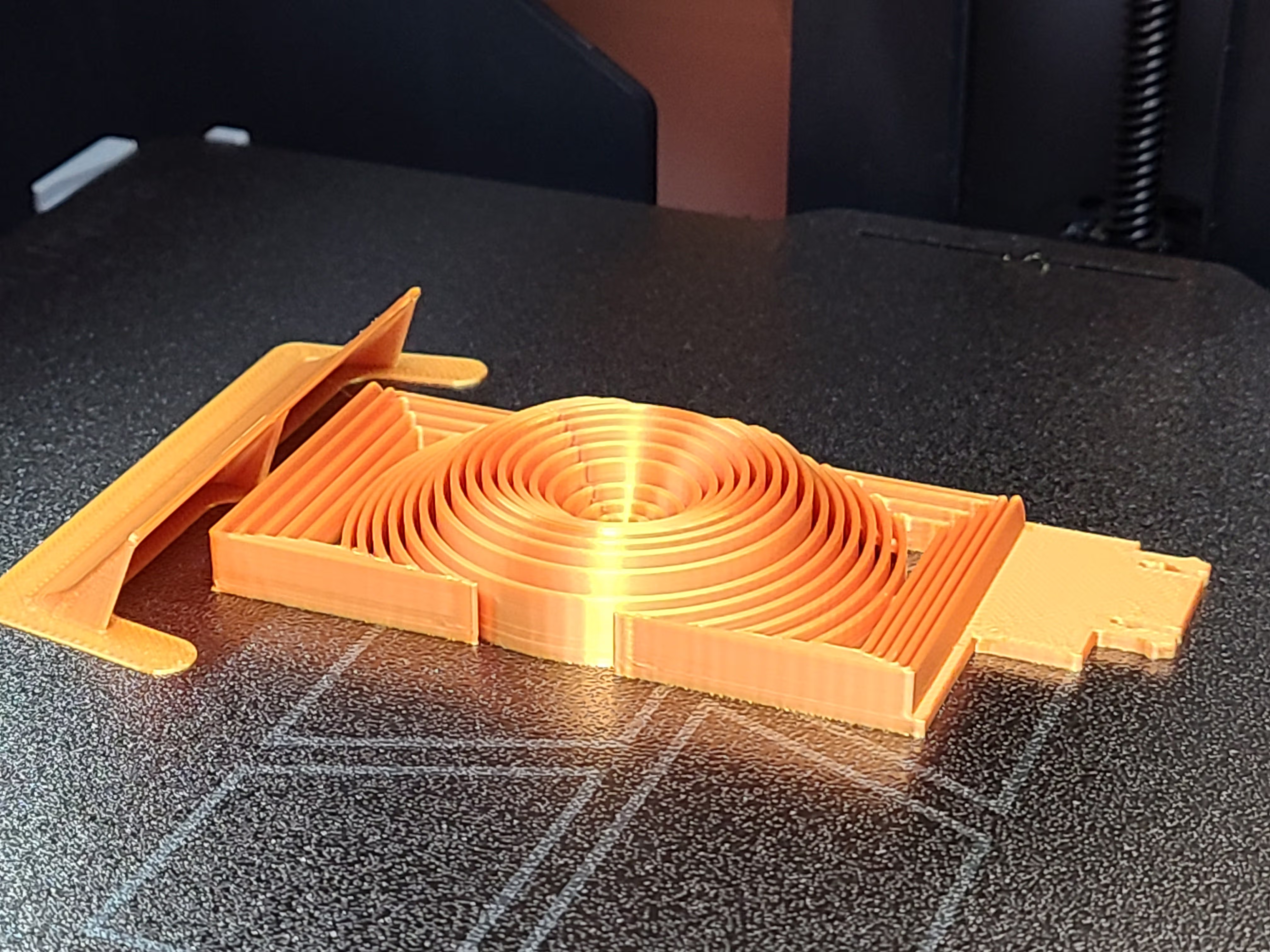
Another demanding validation was performed using the EmBlazeGuard Vortex-Matrix Panel, a design composed of many 0.84 mm thin walls arranged in a dense, open structure. This geometry is highly sensitive to fan-side cooling but also benefits from strong auxiliary airflow to print cleanly due to its thin features.


WarpShield and EmBlazeGuard Vortex-Matrix Printing

The panel was first printed without a WarpShield at 70% auxiliary fan, where fan-side lifting and warping appeared early in the print. The same part was then printed again with a Straight WarpShield placed on the auxiliary-fan side.

With the WarpShield in place, the panel remained fully flat and stable throughout the print — not only at 70%, but also when the auxiliary fan was increased to 100%. No fan-side lift, base distortion, or wall deformation was observed, even under maximum side cooling.

This test demonstrates an important use case for the WarpShield: enabling aggressive auxiliary cooling on thin-wall parts without sacrificing bed adhesion. In designs like the Vortex-Matrix panel, the WarpShield allows cooling to be increased to meet feature-quality requirements while still protecting the lower layers where warping typically begins.


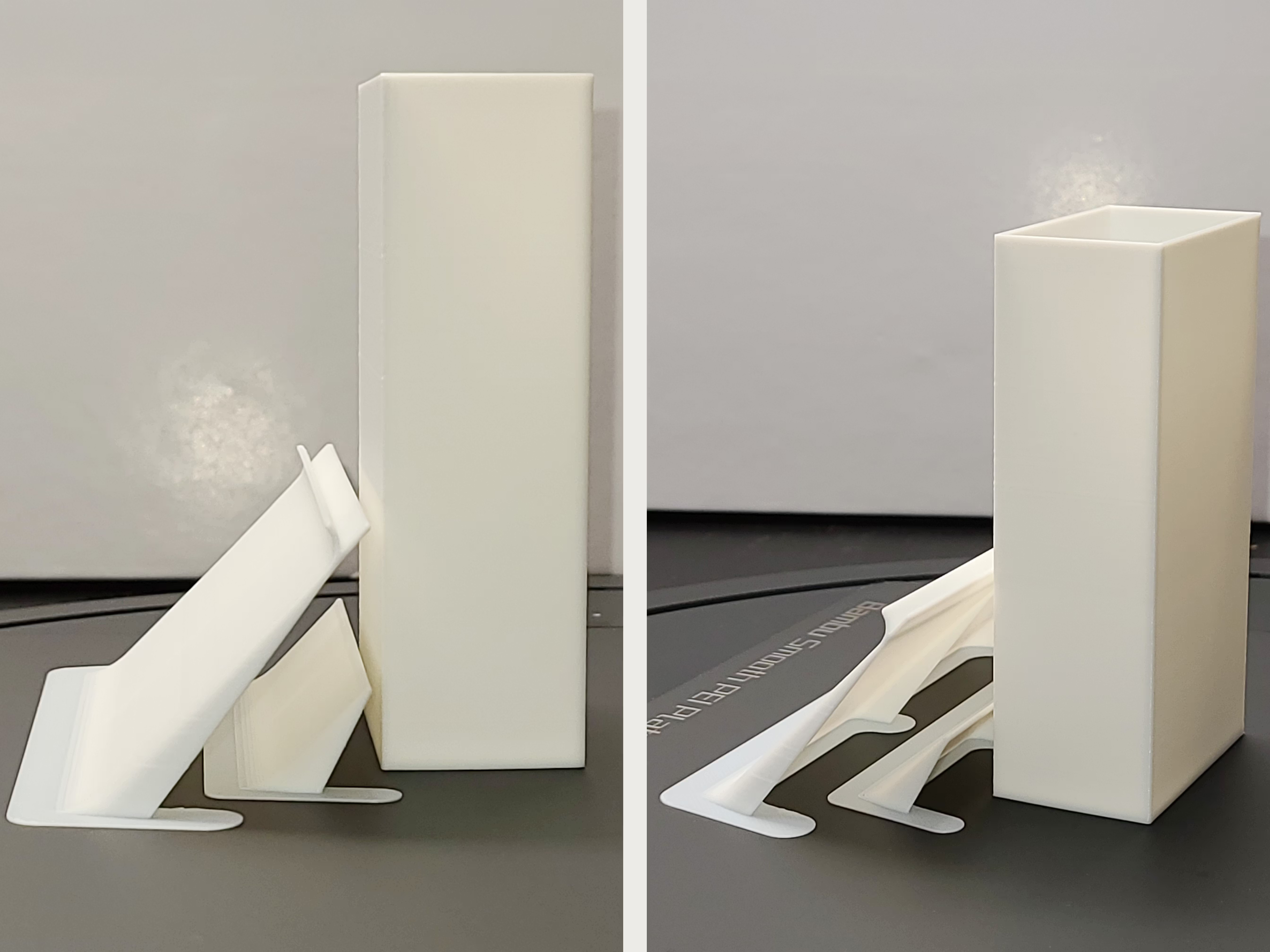
Tall Part Validation — Curved + Straight Starter WarpShields

A tall, thin-walled test part was used because this geometry is naturally prone to fan-induced warping and bed lift. In the unshielded case, warping initiated early and progressed along multiple edges simultaneously — including the fan-facing side, adjacent corners, and the front edge — indicating widespread overcooling of the lower layers.

The tall-part tests compared no WarpShield versus Curved + Straight Starter WarpShields. With both shields in place, the base remained flat throughout the print, demonstrating effective airflow redirection during the most warp-sensitive early layers.


Full-Width Edge Test — Straight WarpShield

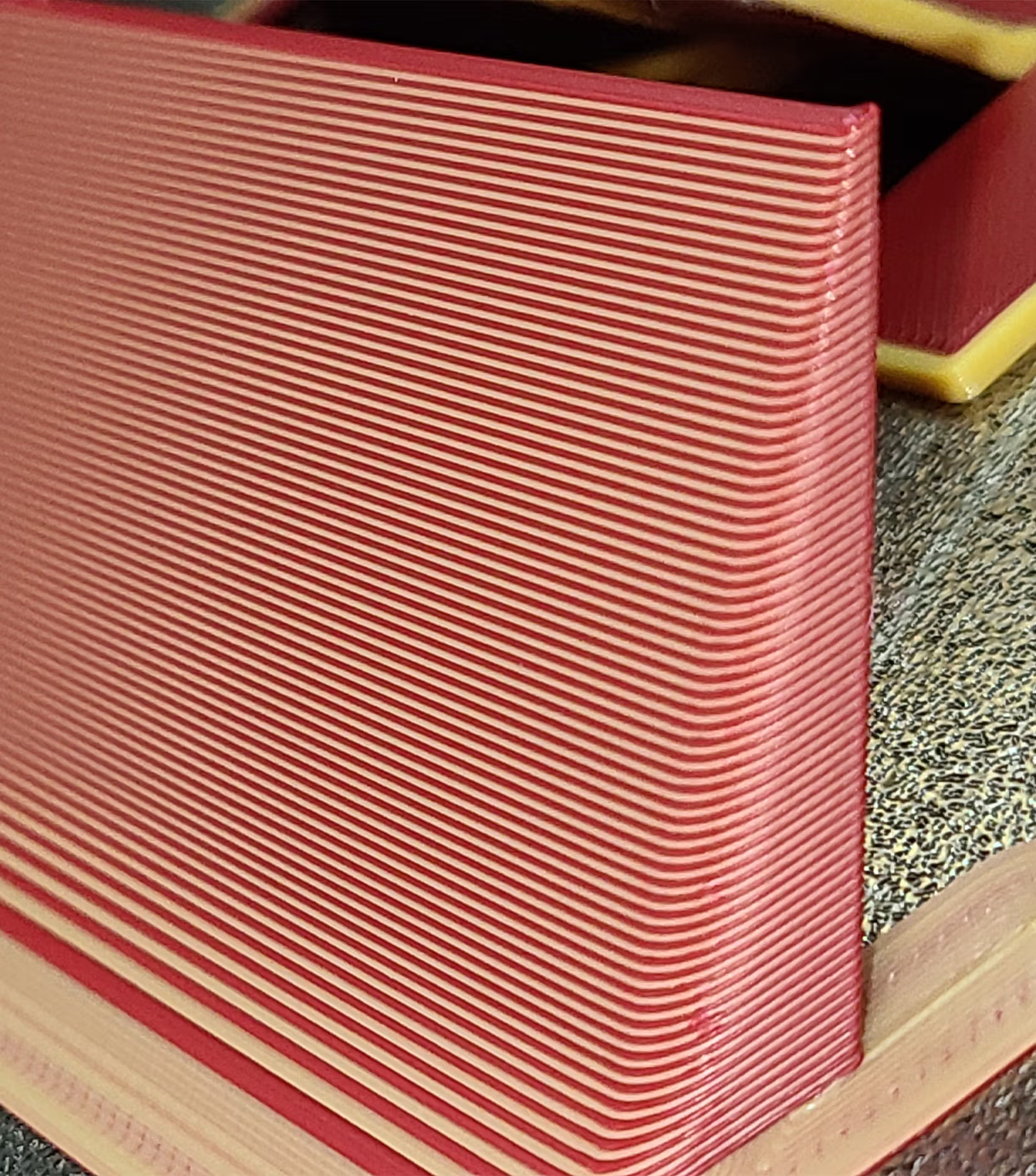
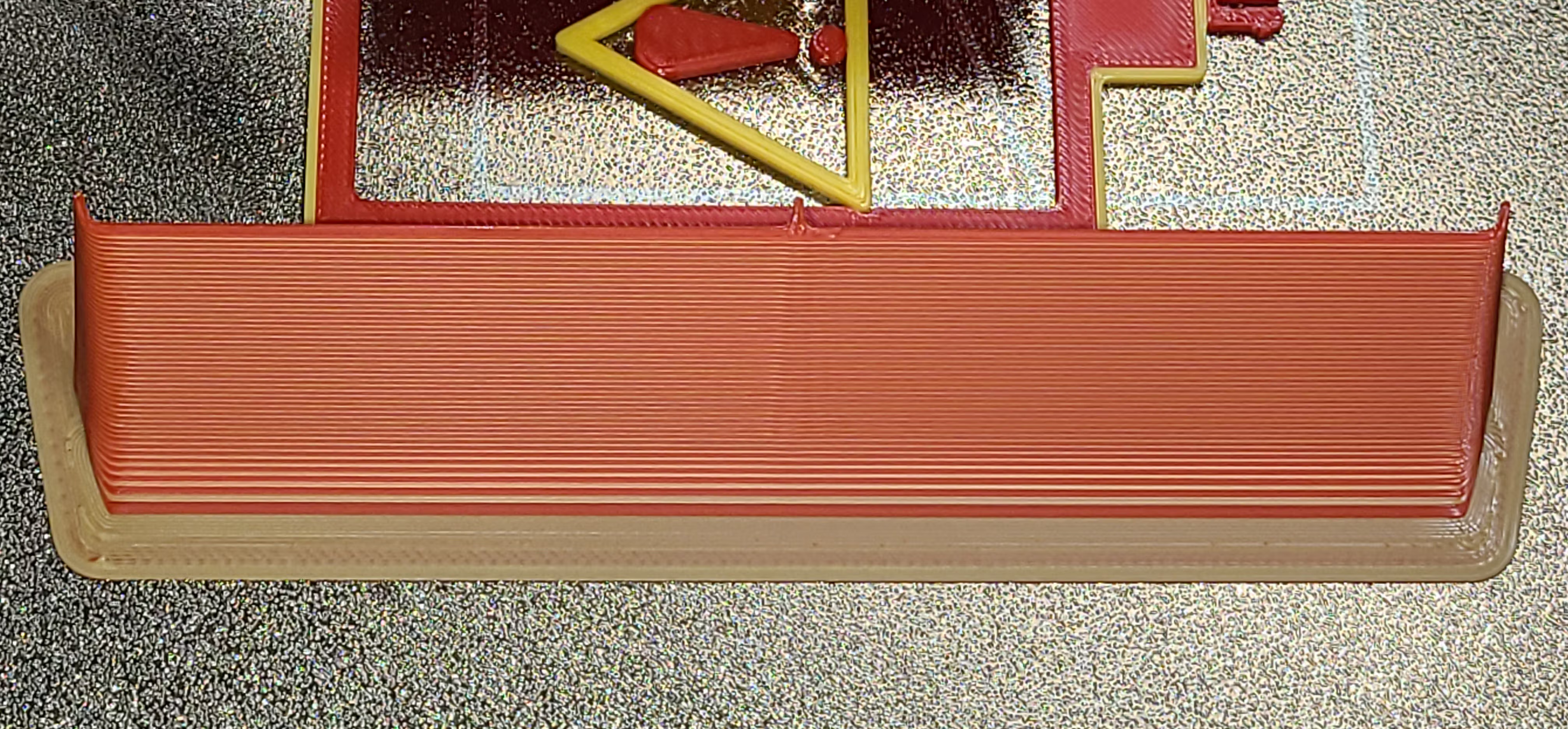
A full-width Straight WarpShield with partWidth = 160 mm and partHeight = 40 mm (resulting in a shield approximately 225 mm wide and 40 mm tall) was generated to be as wide as possible while still avoiding the non-printable area at the front-left corner of the build plate. The shield was then placed 0.5 mm from the auxiliary-fan-side edge of the build plate. The test was performed at 70% auxiliary fan.

WarpShield Full Width Edge Test

WarpShield Full Width Edge Test

Even in this configuration — with the WarpShield positioned extremely close to the auxiliary fan and just 0.5 mm from the edge of the build plate — the shield remained stable with no warping of the wall. Brim lift was visible on the fan side, but it did not propagate into the part or worsen as the print progressed.

Why this matters: The WarpShield’s angled geometry redirects the auxiliary fan’s airflow upward, reducing the tendency for airflow to be driven downward into the first layers — which is what typically causes peeling and warping on fan-facing parts.

Back to Top

Notes & Troubleshooting

  • Multi-color: keep WarpShield separate (do not merge) or purge routing will not work.
  • Single-color: merging and drawing a seam on the WarpShield is required for layer-start anchoring behavior.
  • Seam placement: center rib is the target. If the seam is elsewhere, restarts may happen on the model.
  • Some layers starting on the model is normal (toolpath ordering and geometry can override it).
  • Placement gap: 2–3 mm is recommended. Too far reduces effectiveness; too close risks collisions.
  • Print time & filament estimates: The WarpShield’s true cost is best evaluated by comparing a print with and without the WarpShield included. Printing or slicing the WarpShield alone will overestimate its impact.
Back to Top

Licensing

License Overview

The SimEyeSee WarpShield is released under the Creative Commons Attribution–NoDerivatives (CC BY-ND 4.0) license, with specific exceptions outlined below.

This allows the WarpShield to be freely used and included with other models — including models sold commercially — while protecting the integrity of its airflow design.

The SimEyeSee WarpShield is a free, licensed airflow accessory, not a remixable base or template.


Why the SimEyeSee WarpShield Is Free

The SimEyeSee WarpShield is provided free of charge because it is meant to solve a common, real-world printing problem — not to be a paywalled accessory.

Keeping it free allows makers and designers to include a reliable airflow solution with their own models, including models they sell commercially, without adding cost or friction for users.

The license protects the airflow design itself while still allowing practical size adjustments and clean integration. Attribution ensures the design remains connected to its source while staying accessible to everyone.


What You Are Allowed to Do

  • Include the SimEyeSee WarpShield with your own models, including models sold commercially
  • Distribute it:
    • merged into your model, or
    • as a separate file in the same product listing intended to be used with your model
  • Generate WarpShields of different sizes using the official Autodesk Fusion file or provided STEP files
  • Resize or scale the WarpShield
  • Trim or cut the height of the WarpShield to match your model
  • Use the WarpShield in both personal and commercial projects

Including the SimEyeSee WarpShield does not restrict the commercial sale of your own model files or printed products.


What You Are Not Allowed to Do

  • Change the WarpShield’s design, geometry, airflow shape, wall structure, or features
  • Create or distribute modified, “improved,” or stylistically altered versions
  • Distribute the WarpShield as a standalone product
  • Rebrand, rename, or claim authorship of the WarpShield
  • Use the WarpShield as a remixable base or template

Only size adjustments and height trimming are permitted. Design changes are not.


No Remix Label Required

Including the SimEyeSee WarpShield under these terms does not require your model to be marked as a “remix” on 3D-printing platforms.

The WarpShield is a licensed accessory, not a derivative component.


Attribution Requirements

Attribution is required wherever the WarpShield is included. Attribution must be visible and reasonably discoverable to users — not hidden in metadata, source files, or internal-only references.

  • On first mention, use the full name SimEyeSee WarpShield
  • Subsequent mentions may use WarpShield
  • Include a link to either:
    • https://SimEyeSee.com/WarpShield/, or
    • the platform-specific SimEyeSee WarpShield product page

In Plain English

You are free to use it, include it, resize it, and sell your own models that use it — as long as you don’t change its design, don’t distribute it on its own, and you give proper credit.

Back to Top